How to Add a Member
Caution
This feature is for space administrators only.
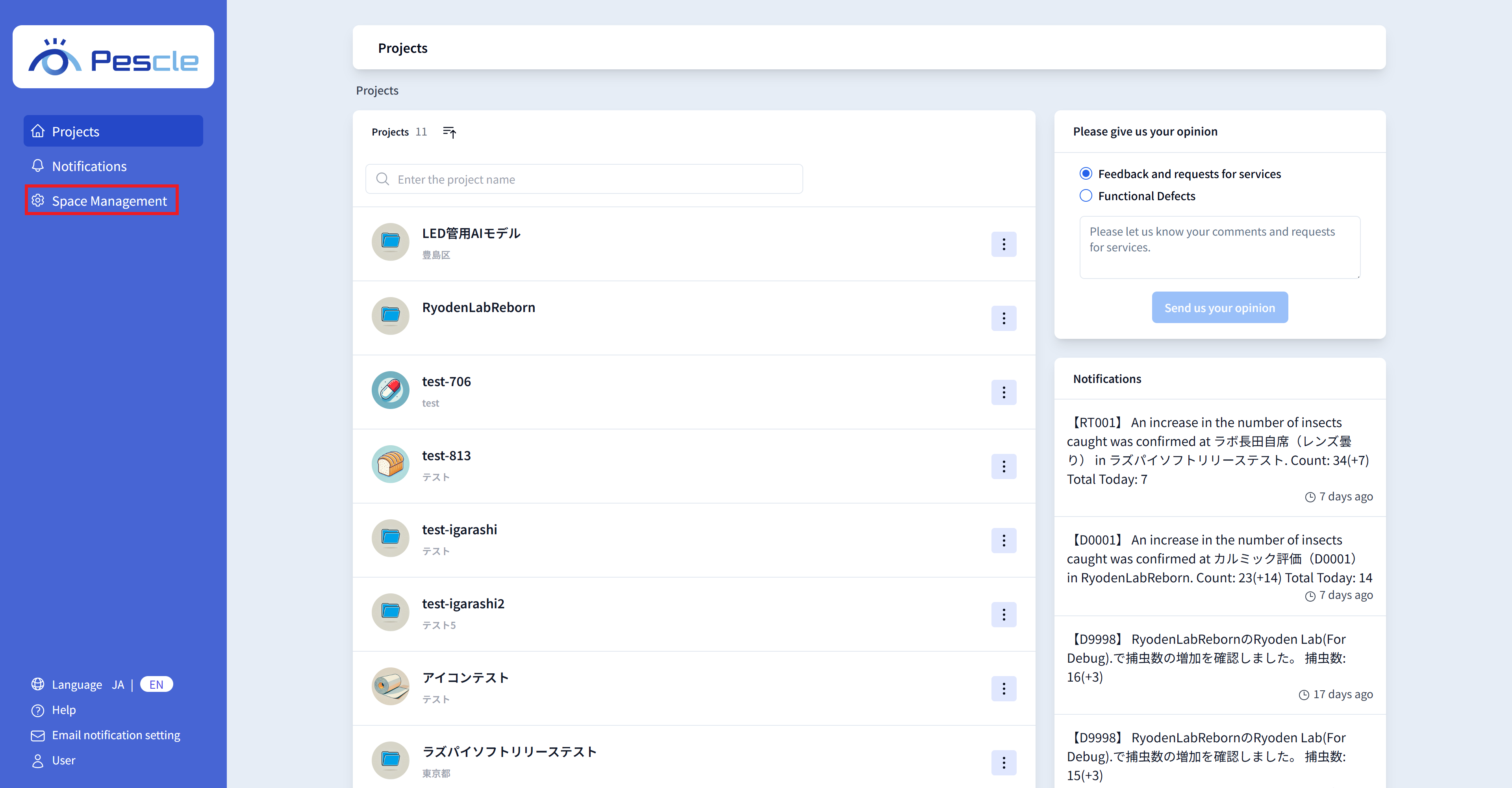
After signing in, the space administration navigation bar will be displayed on the left side of the screen. Click “Space Management”.
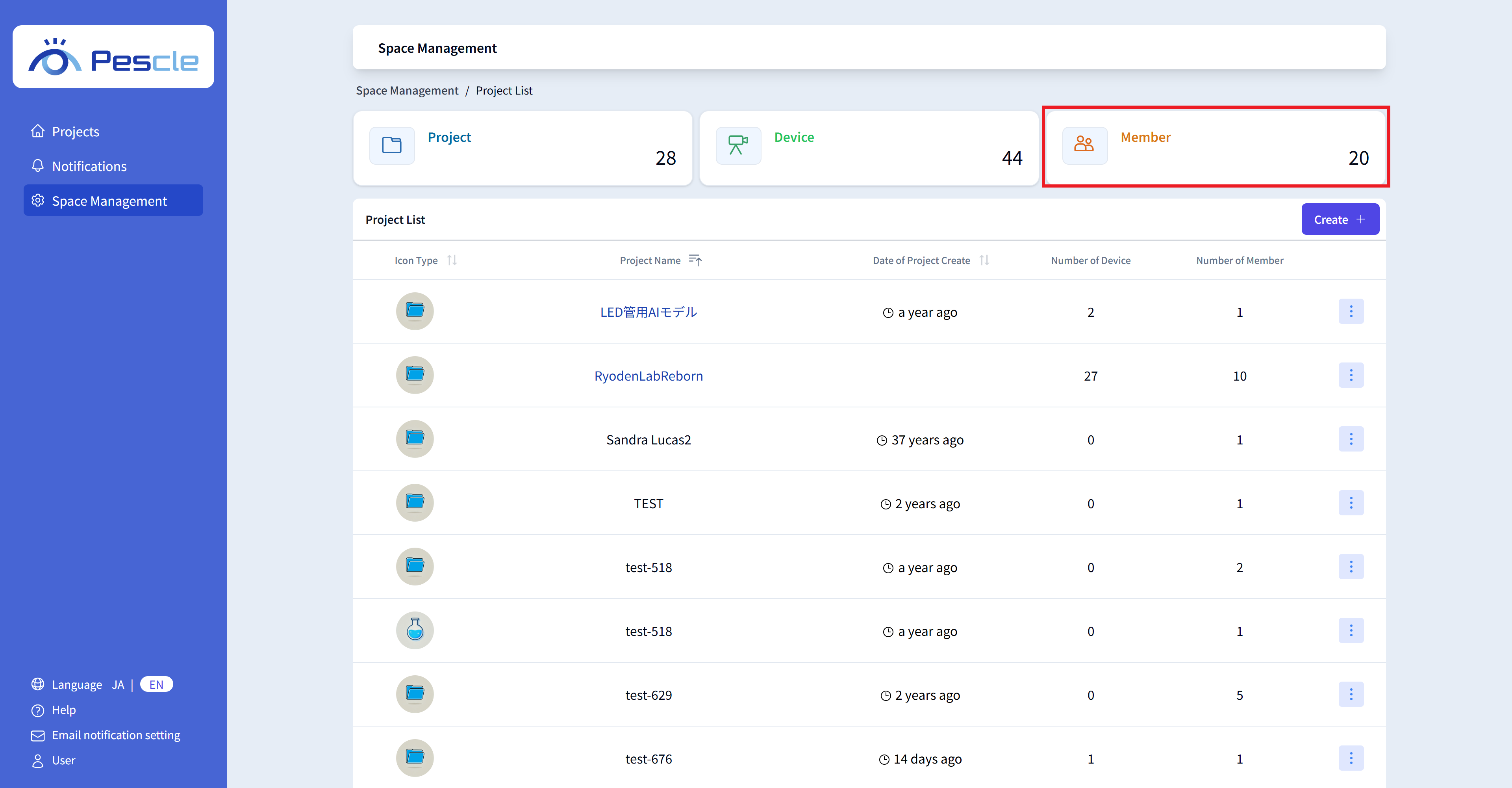
The project list screen will be displayed first. Click the “Member Count Display Area” at the top of the screen.
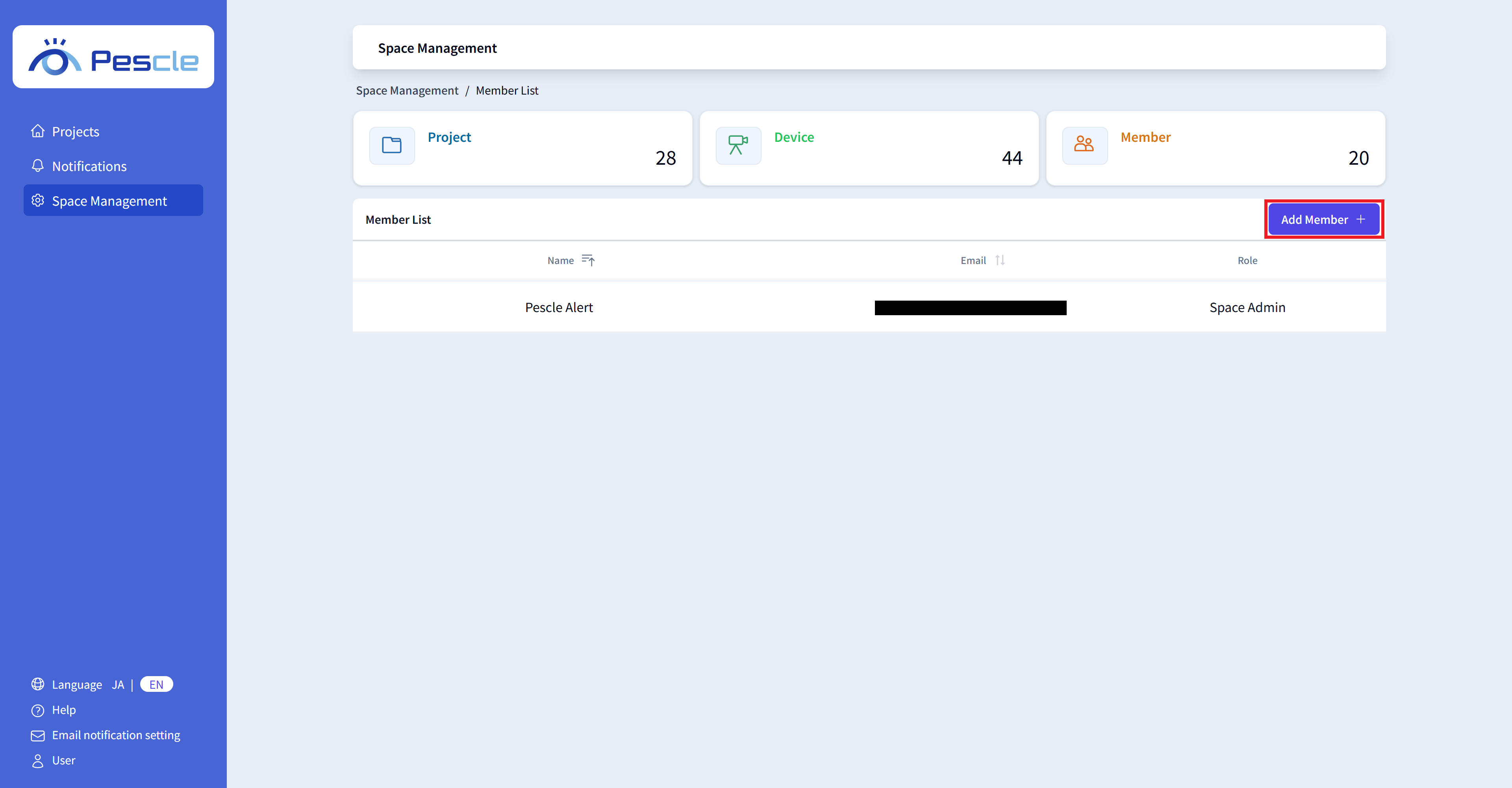
Once the member list screen is displayed, click the “Add Member” button.
Hint
From here on, this is a feature of RYODEN ID.
Enter the email address, name, and whether the member is a space administrator. After completing the input, click the “Add Member” button.
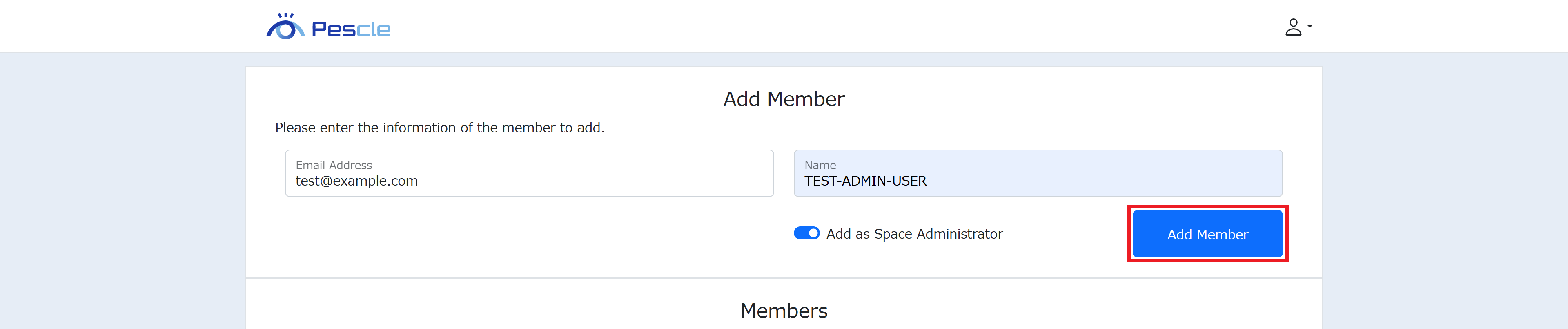
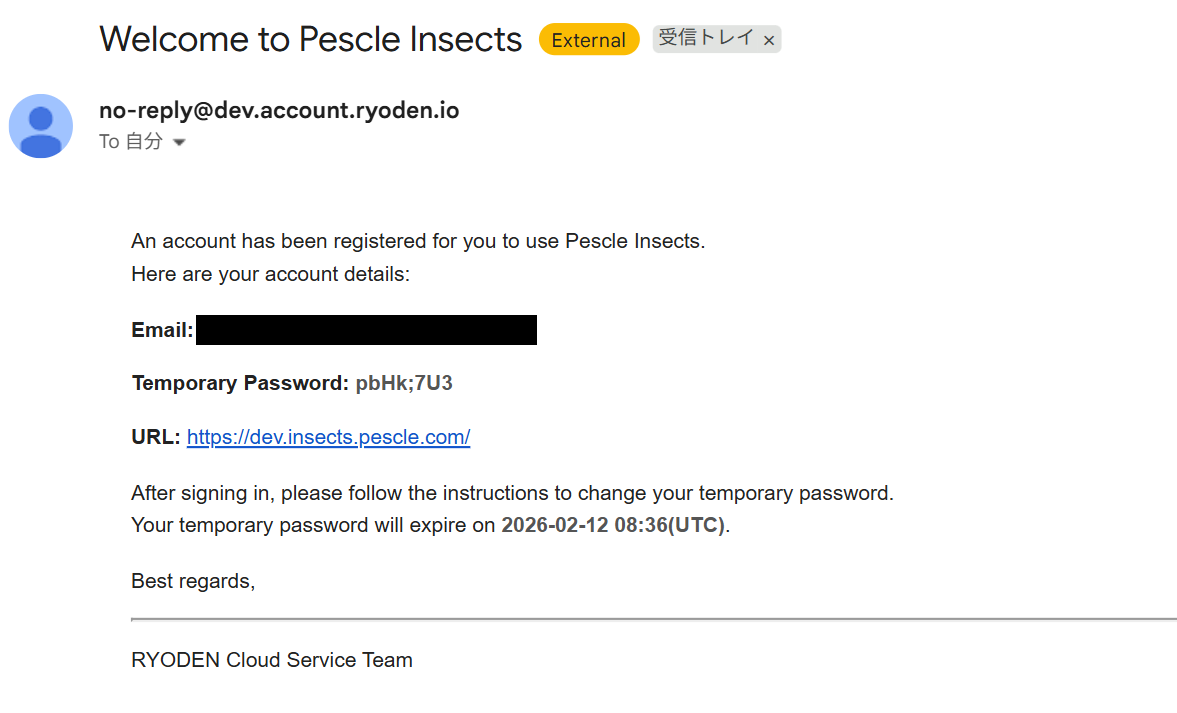
When a member is successfully added, an invitation email will be sent to the member. The invitation email contains a password that can only be used for the first sign-in. Please notify them to sign in using their email address and the initial password.