Add Maintenance History
Hint
This section explains how to replace insect trap sheets and fluorescent lamps.
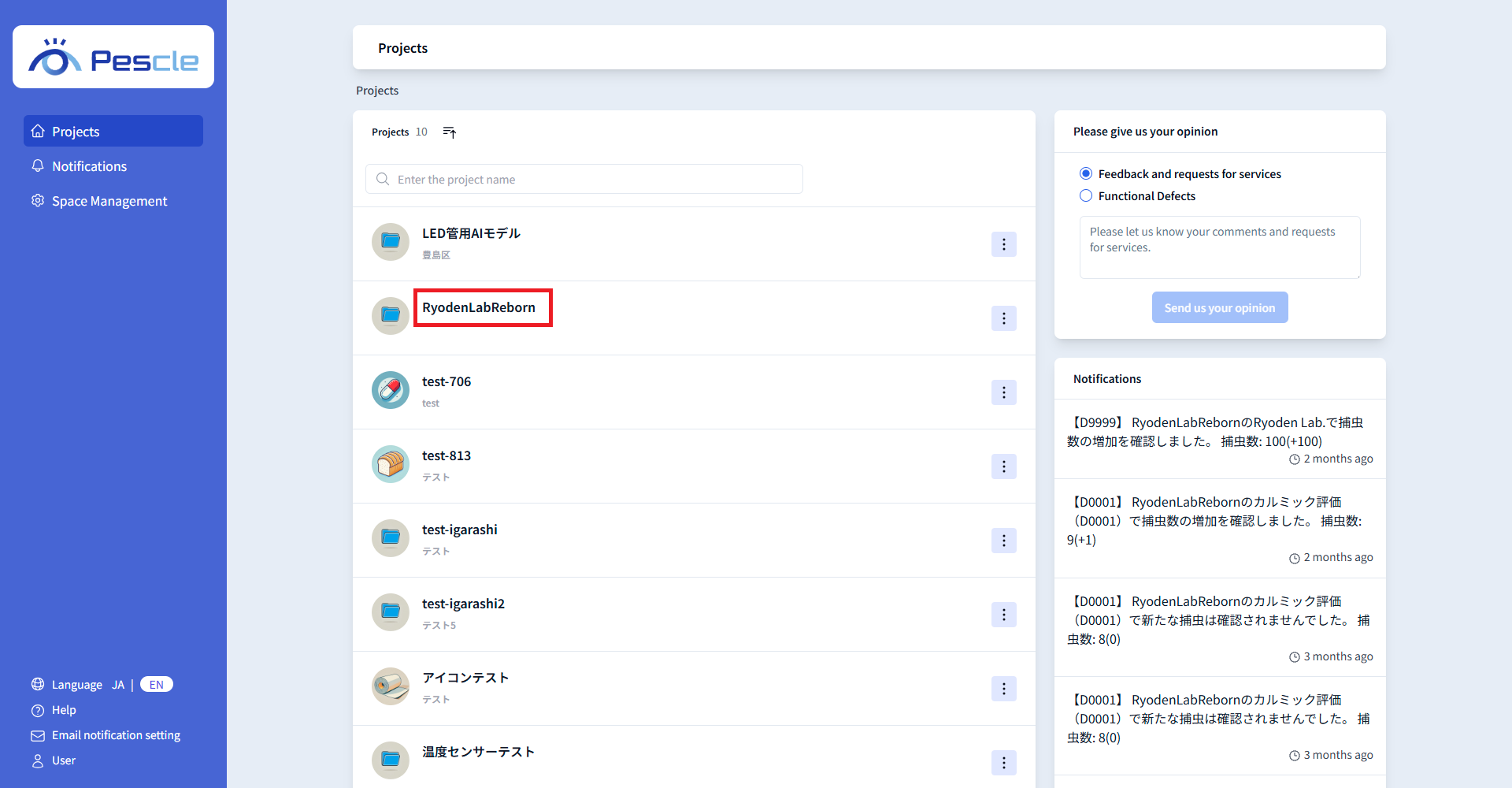
After signing in, you can view the project list. Click the project name that contains the insect trap camera you want to add maintenance history for.
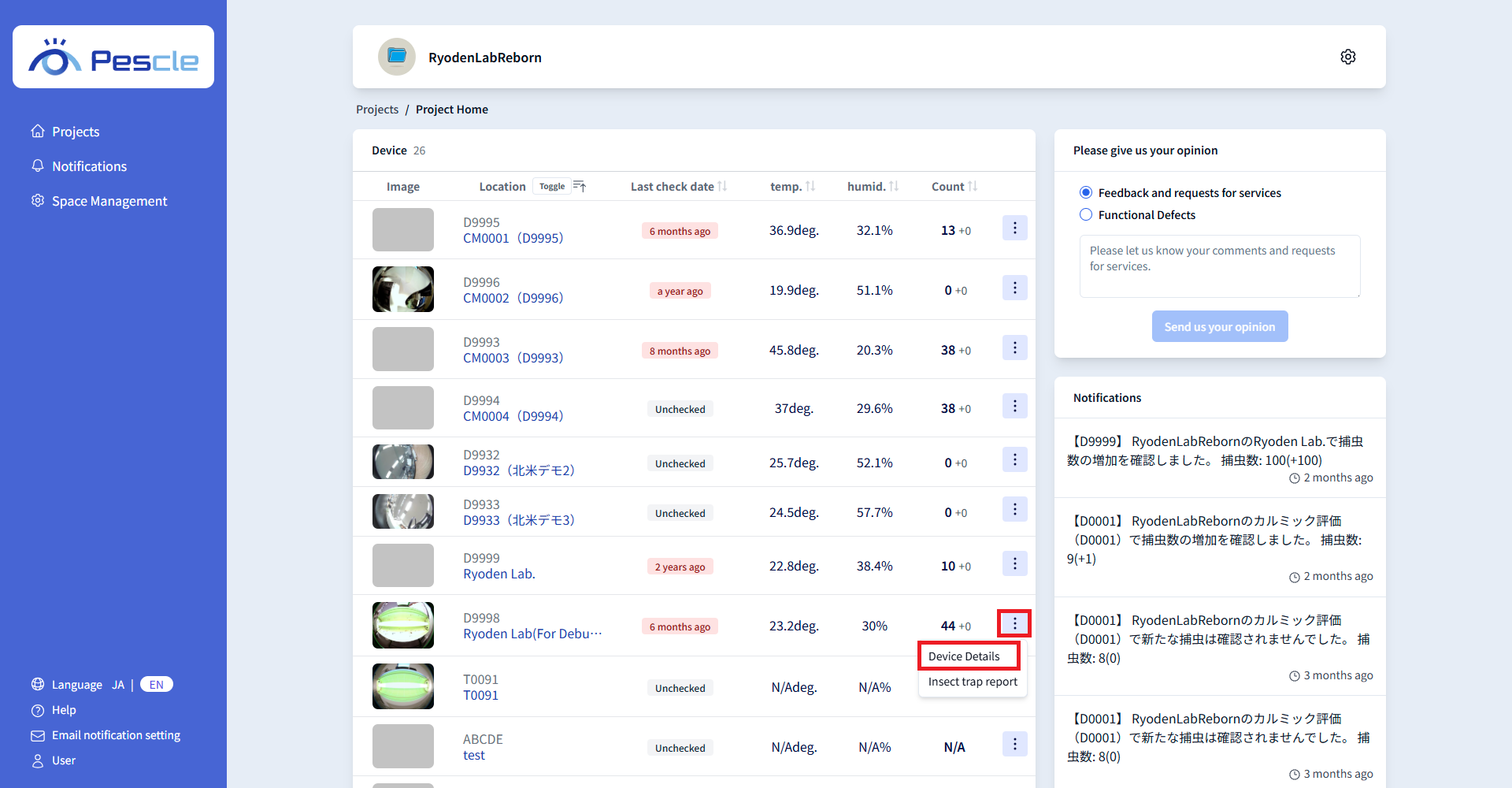
The project home screen will be displayed. Click the vertical ellipsis to the right of the target insect trap camera.
When the submenu appears, click “Device Details”
Scroll to the bottom of the insect trap camera detail screen.
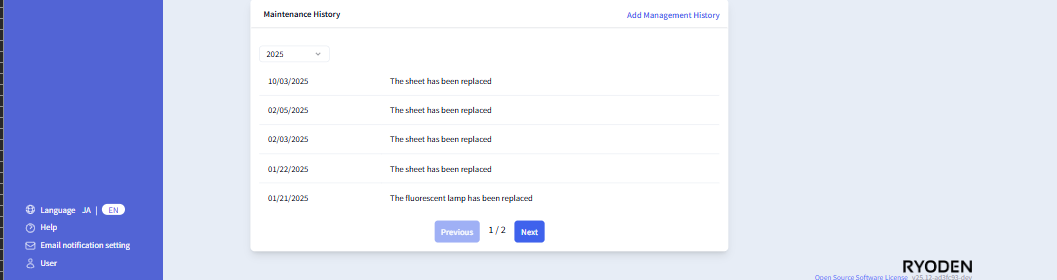
Add Lamp Replacement History
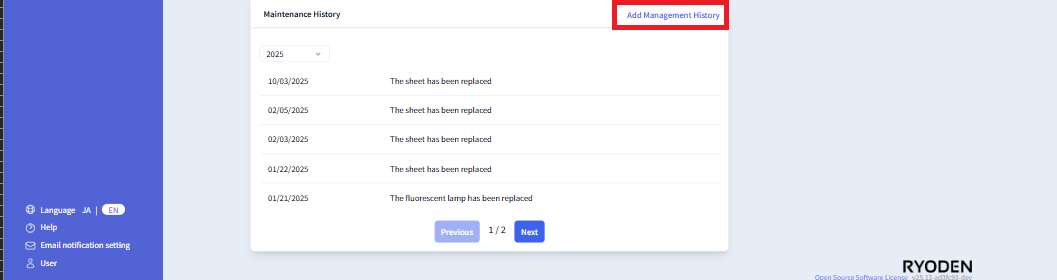
When the maintenance history is displayed, click the “Add Management History” button at the top right.
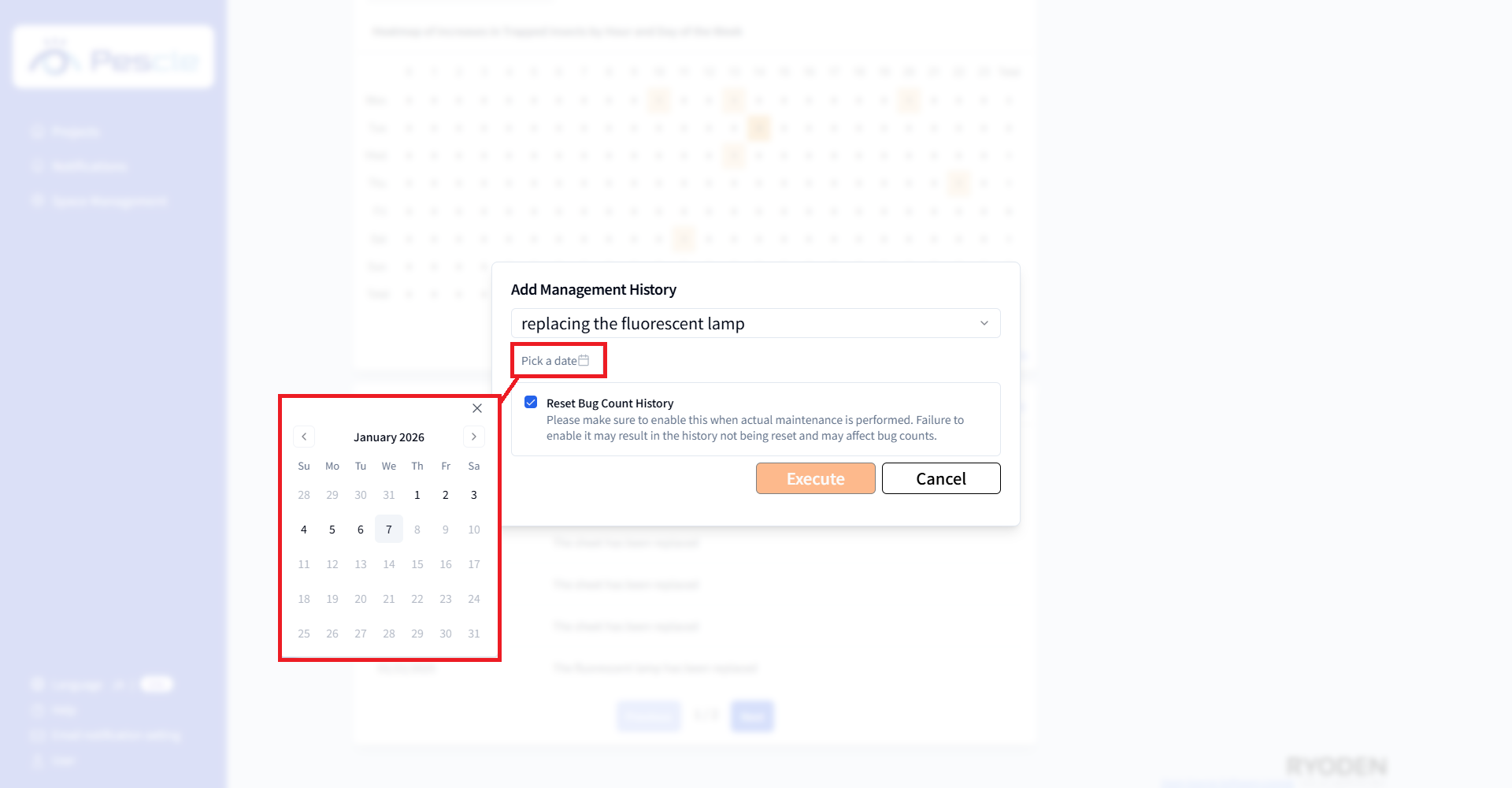
When the dialog appears, click “Please select” and choose “replacing the fluorescent lamp” Then select a date with “Pick a date” and click the “Execute” button.
Caution
If “Reset insect count history” is enabled, the insect detection count will be reset. If you do not want to reset the count, uncheck it to disable. Example: When registering past maintenance records.
Hint
Maintenance history can be entered for past dates. However, resetting the insect count history for sheet replacement is done when adding maintenance history.
Add Sheet Replacement History
When the maintenance history is displayed, click the “Add Management History” button at the top right.
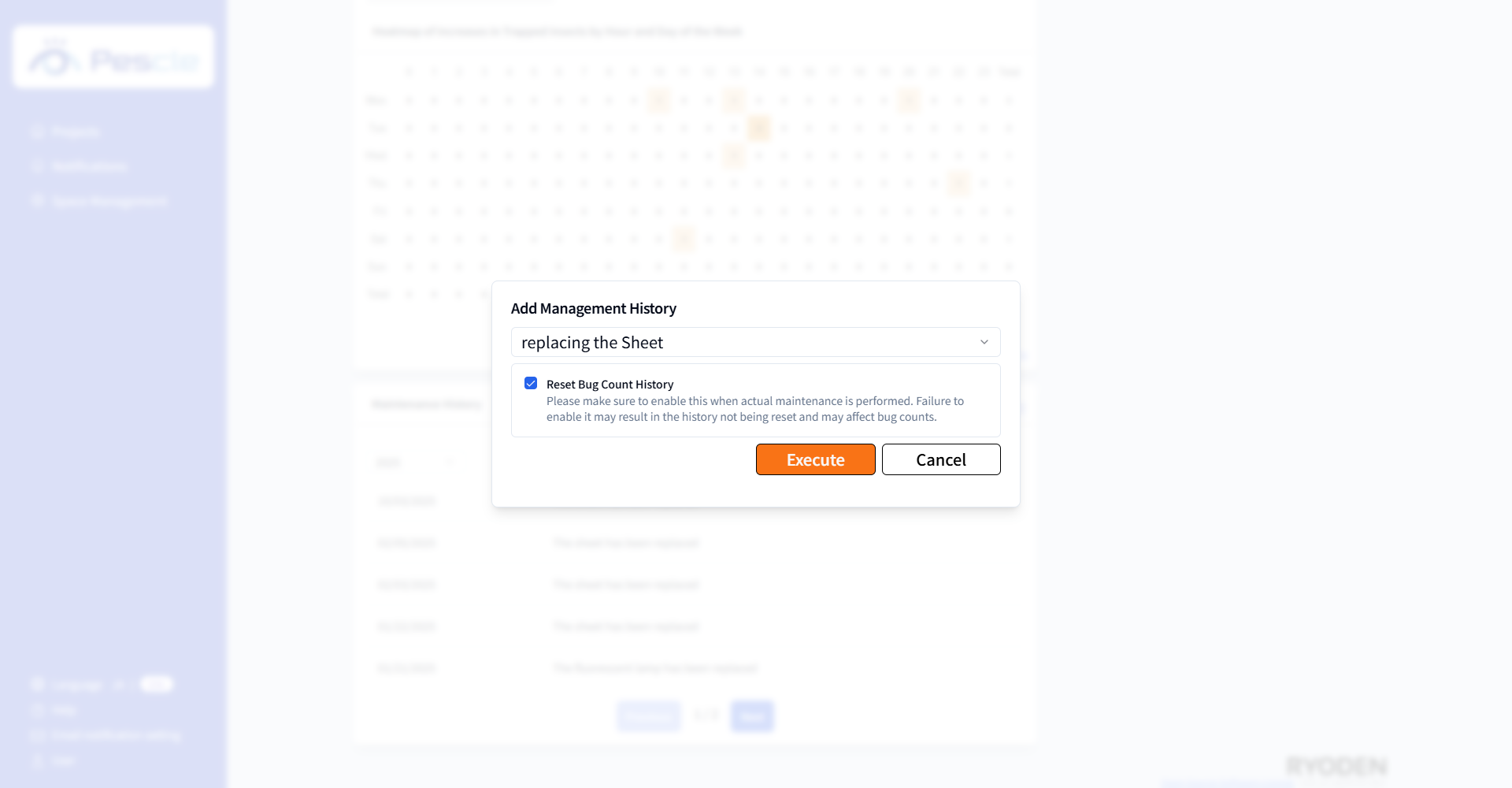
When the dialog appears, click “Please select” and choose “replacing the Sheet” Finally, click the “Execute” button.
Caution
If “Reset insect count history” is enabled, the insect detection count will be reset. If you do not want to reset the count, uncheck it to disable. Example: When registering past maintenance records.
Hint
Resetting the insect count history for sheet replacement is done when adding maintenance history.