How to Change Insect Trap Camera Settings
Caution
This feature is for project administrators.
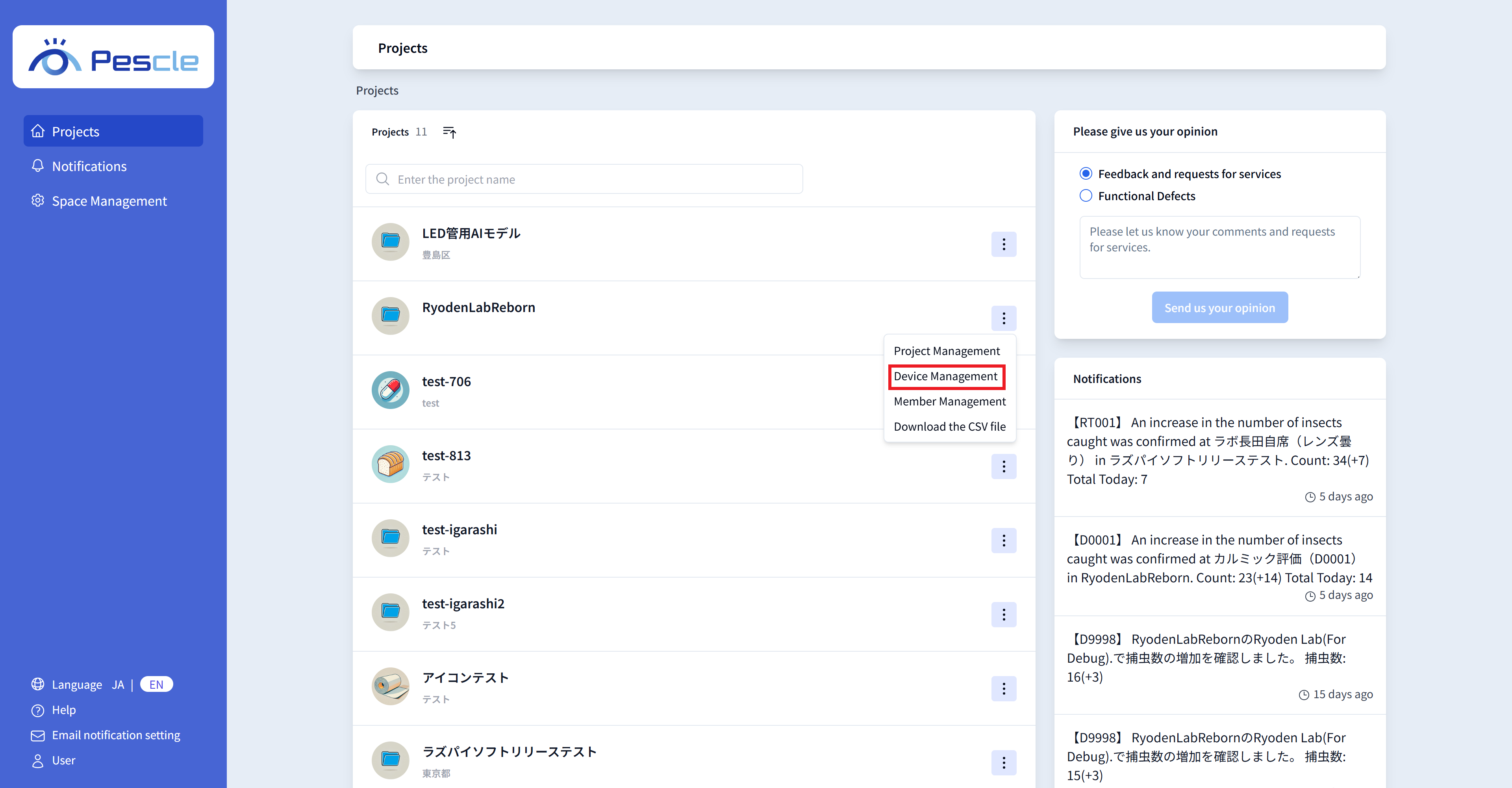
Click the vertical ellipsis on the right side of the project that the insect trap camera you want to view belongs to.
When the submenu appears, click ‘Device Management’.
Hint
To download insect count data, click ‘CSV Download’. For details, see How to Download Insect Count Data.
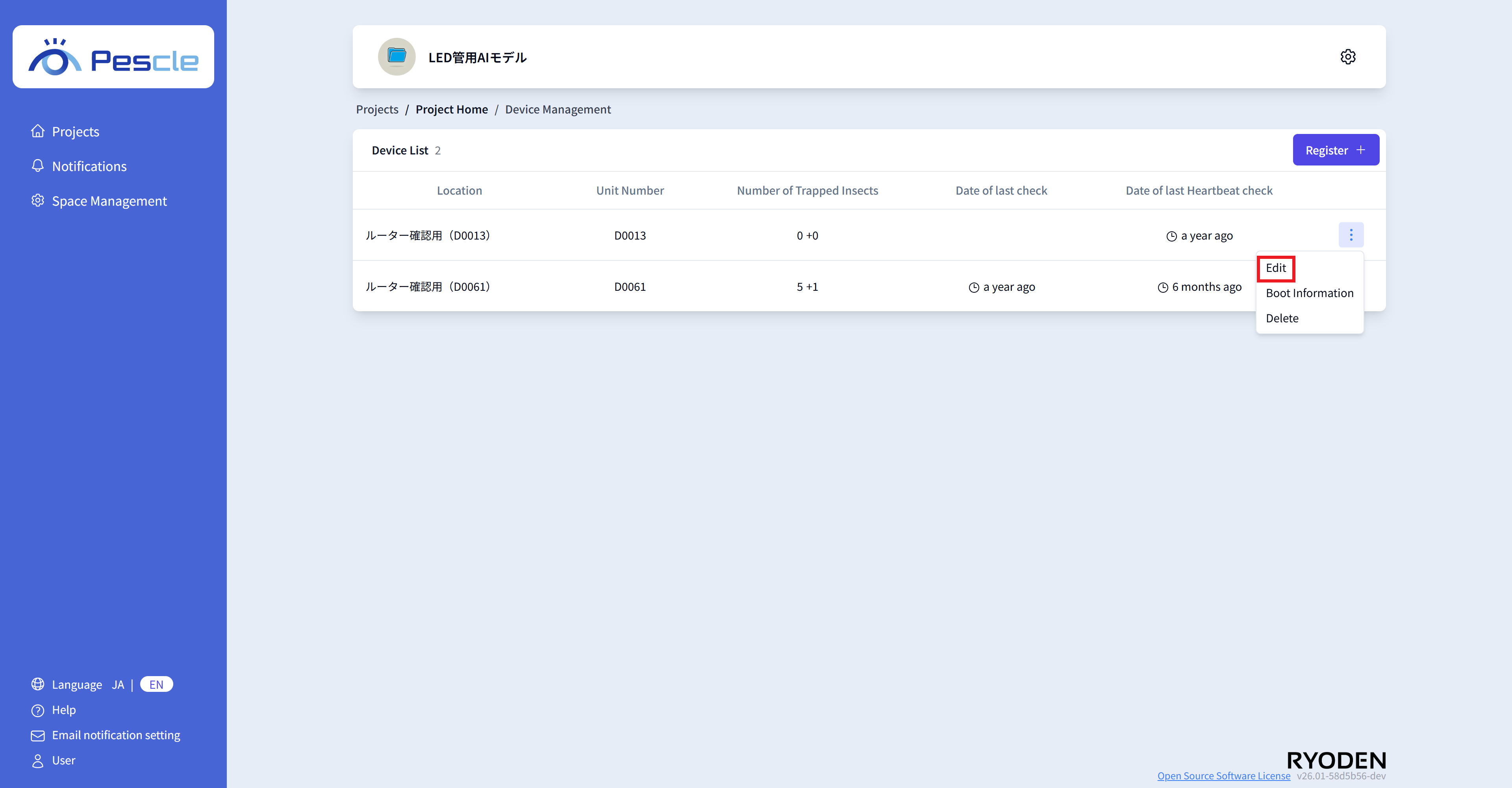
When Device Management screen is displayed, click the vertical ellipsis on the right side of the target insect trap camera.
When the submenu appears, click ‘Edit’.
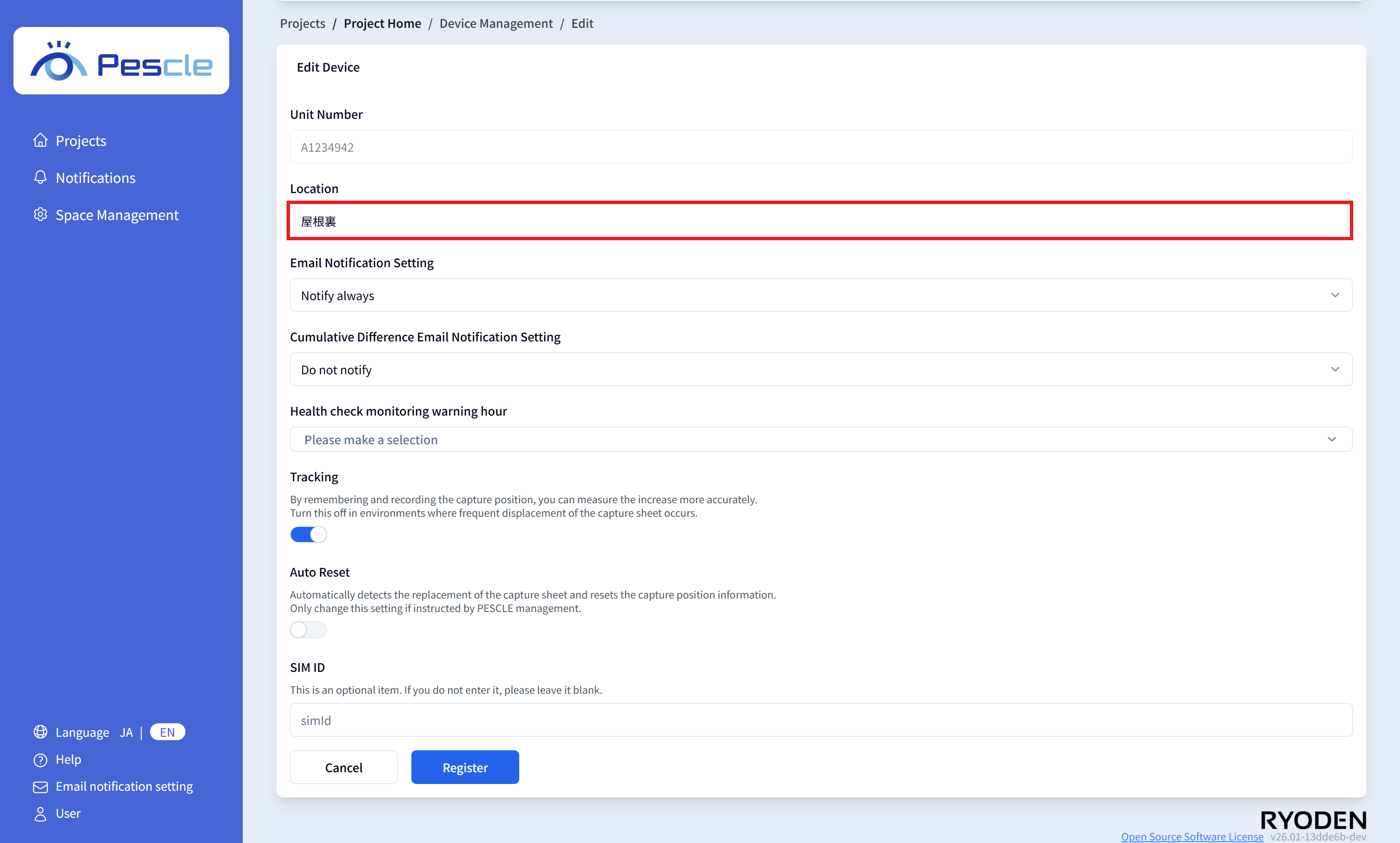
Change Installation Location Name
When the edit screen is displayed, enter the name of the installation location.
When you have finished entering, click the ‘Register’ button.
Change Email Notification Settings
There are three types of settings for email notification of insect detection results.
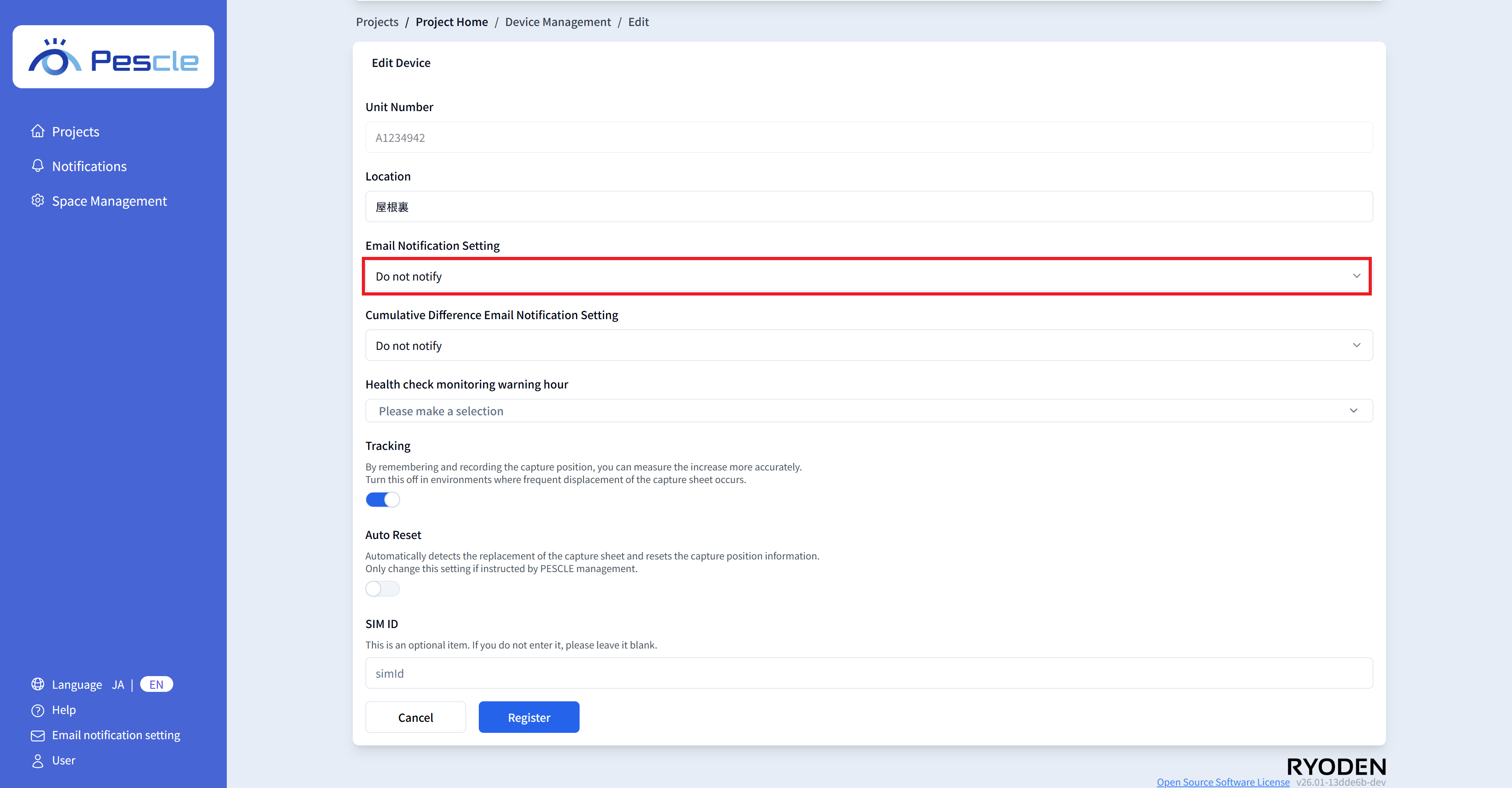
Do Not Send Email Notifications
If notification is not required, select ‘Do not notify’ and click the ‘Register’ button.
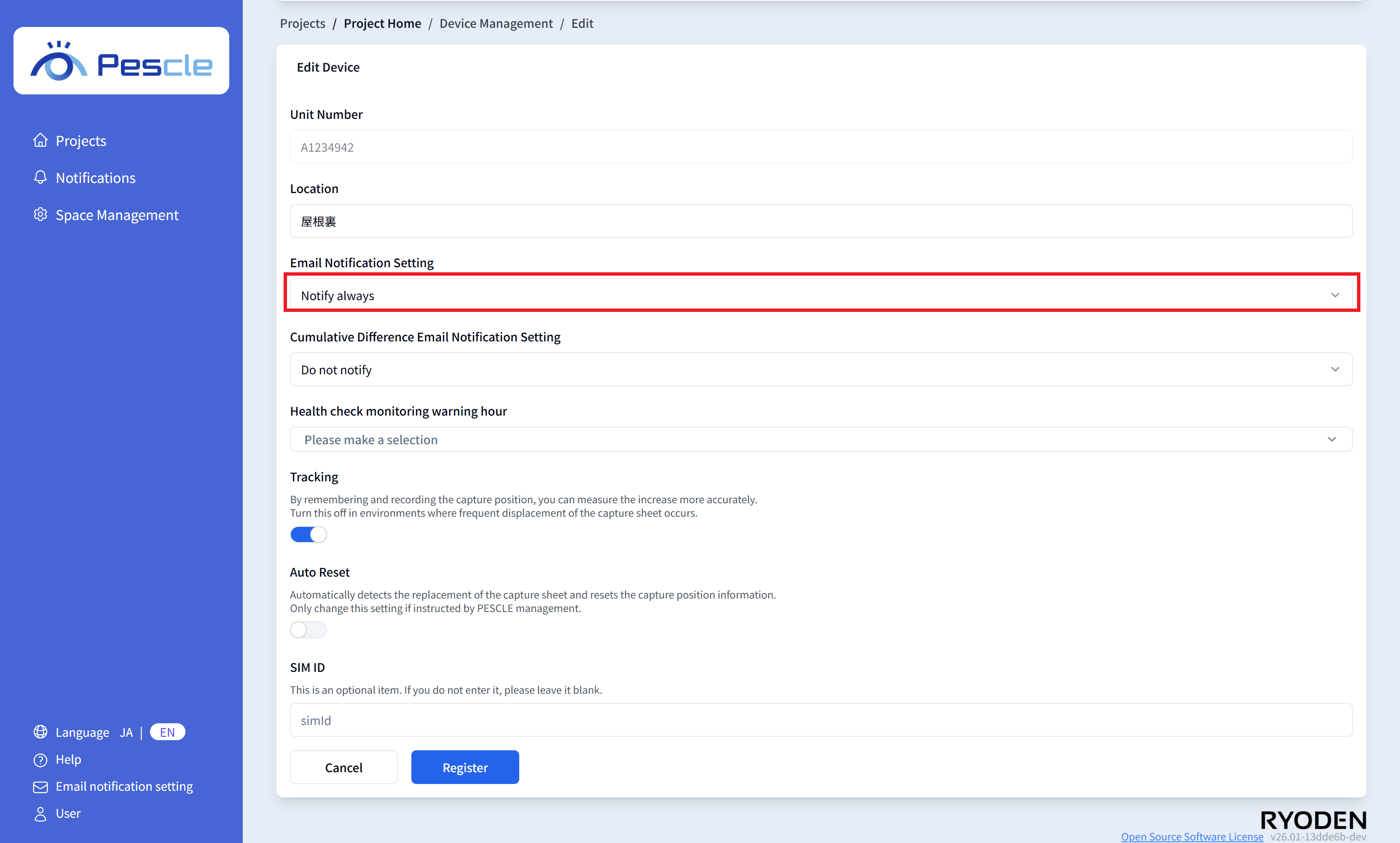
Notify Every Time
To receive notifications every time (every hour), select ‘Notify every time’ and click the ‘Register’ button.
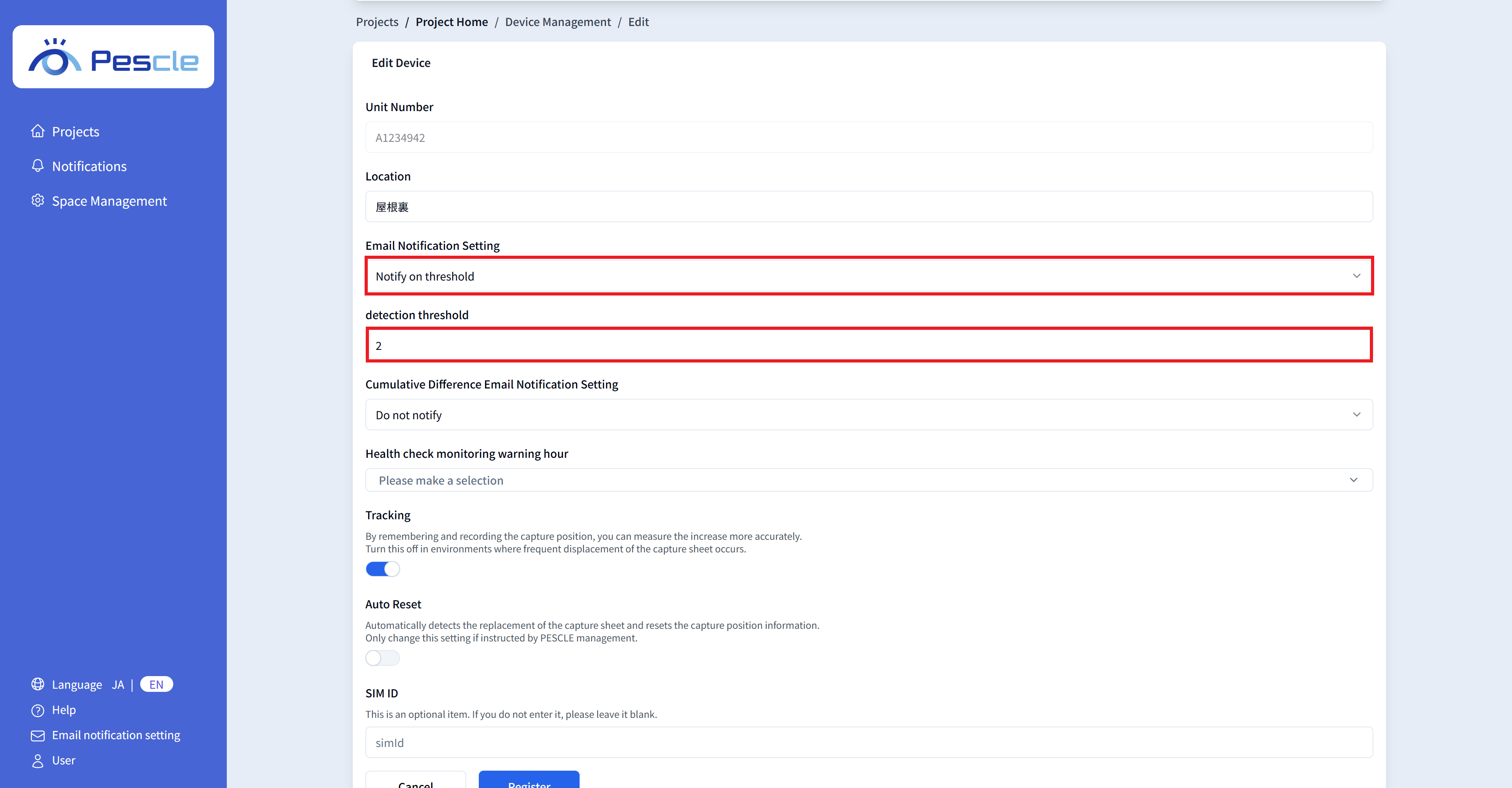
Notify on Threshold
To receive notifications when the count exceeds a threshold, select ‘Notify on threshold’ and enter the threshold value.
When you have finished entering, click the ‘Register’ button.
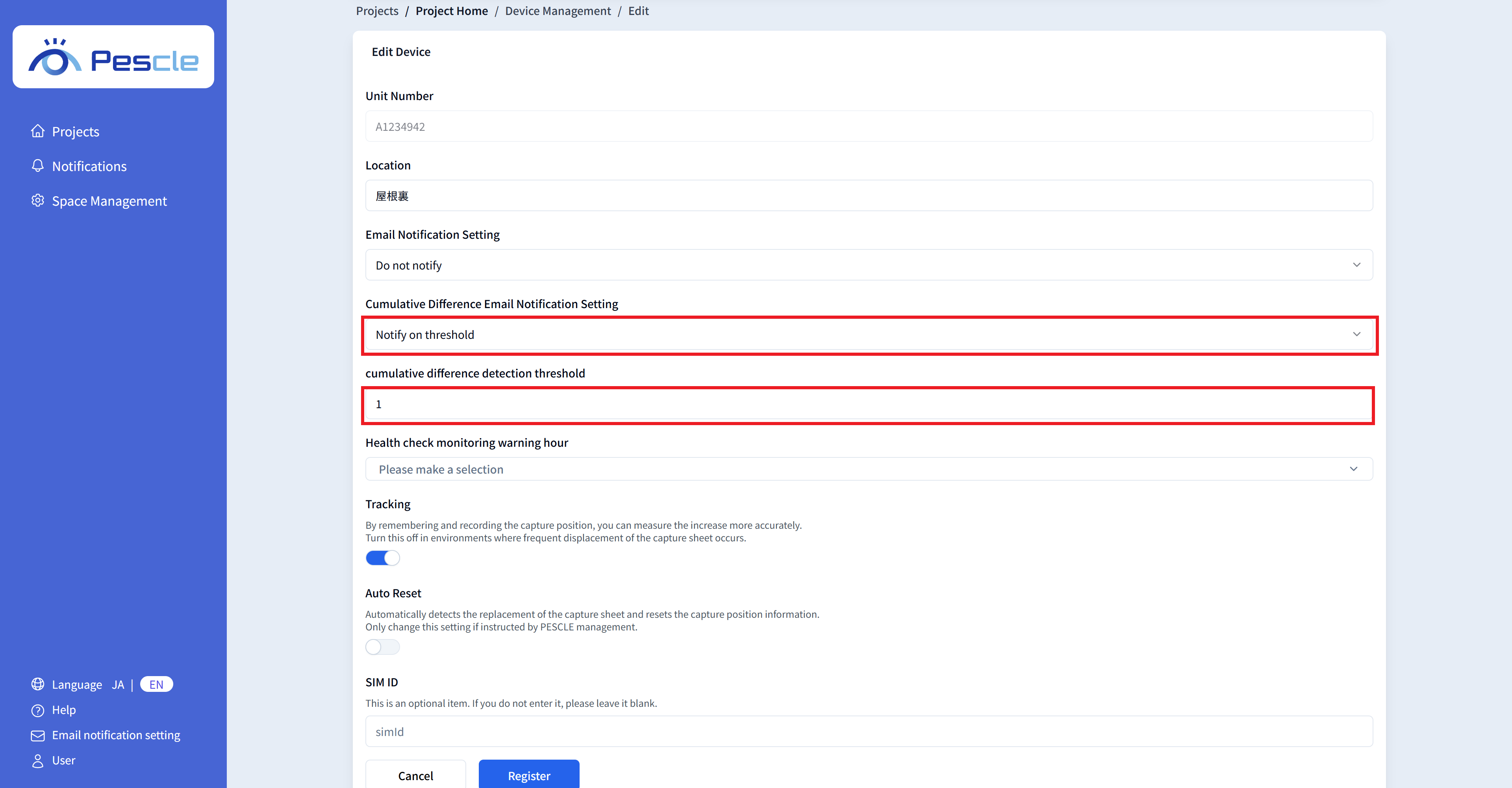
Cumulative Difference Email Notification Settings
This setting sends an email notification of insect detection results when the cumulative daily insect count exceeds the threshold.
There are two types of settings.
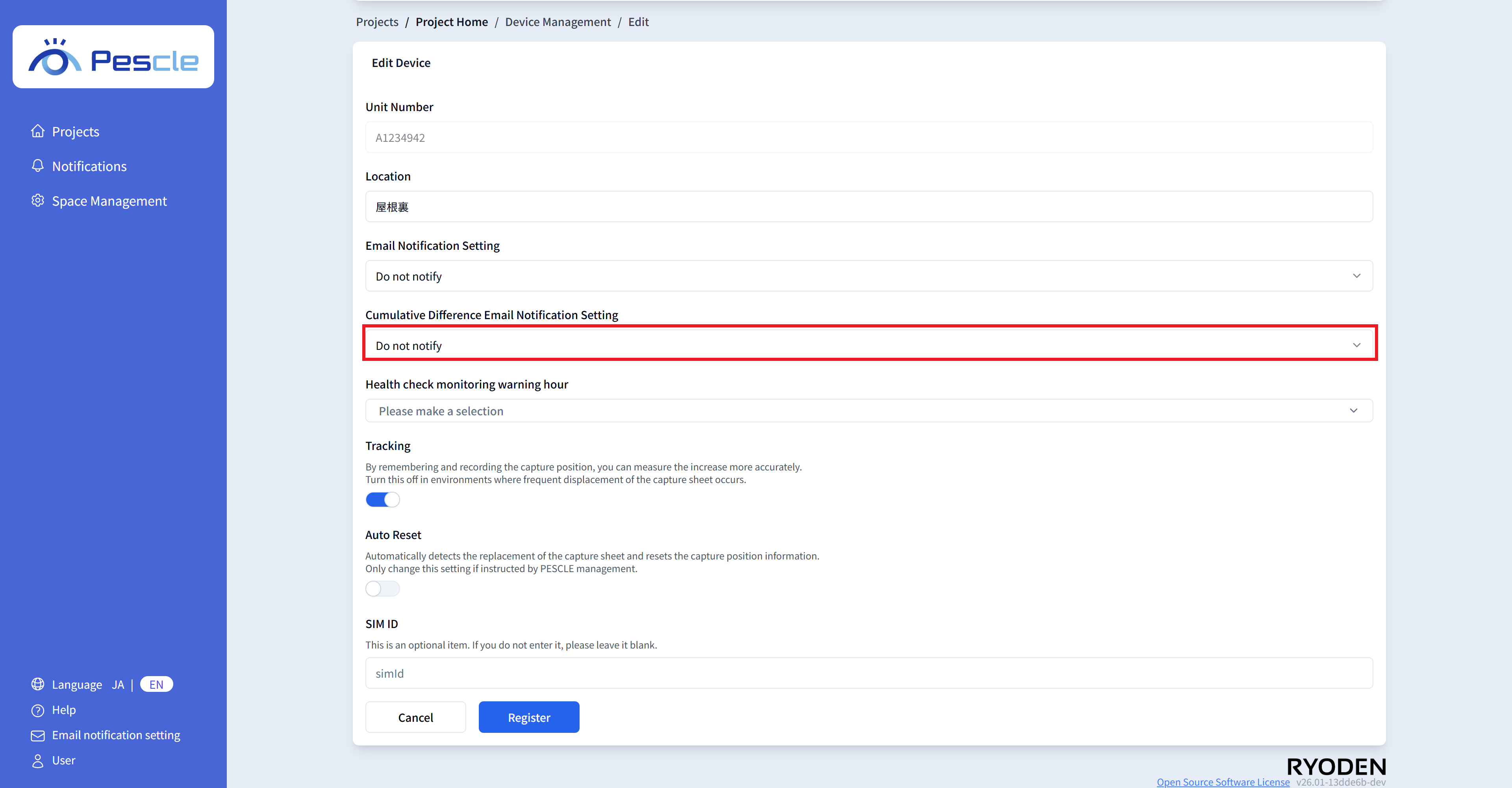
Do Not Send Email Notifications
If notification is not required, select ‘Do not notify’ and click the ‘Register’ button.
Notify on Threshold
If you want to notify on threshold, select “Notify on threshold.” An email will be sent when insects above the threshold are detected.
When input is complete, click the “Register” button.
Change Heartbeat Monitoring Settings
The insect trap camera periodically sends information to this service. If this transmission is interrupted, this service cannot operate properly.
By configuring the heartbeat monitoring settings, you can receive email notifications to project administrators when the insect trap camera is not operating properly.
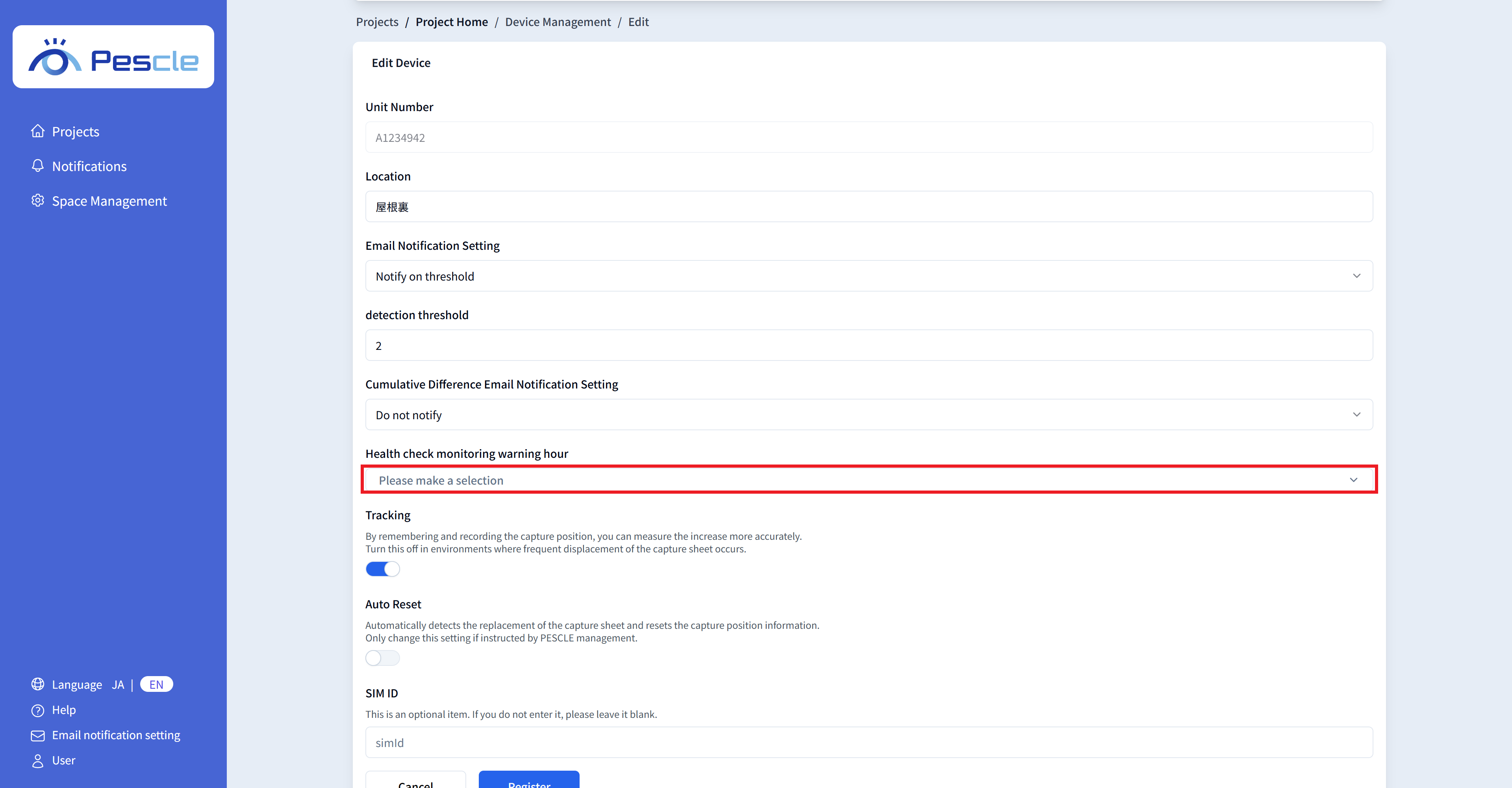
Do Not Send Email Notification for Camera Downtime
If notification is not required, select ‘ Health check monitoring warning hour’ and turn off all checkboxes. When you have finished, click the ‘Register’ button.
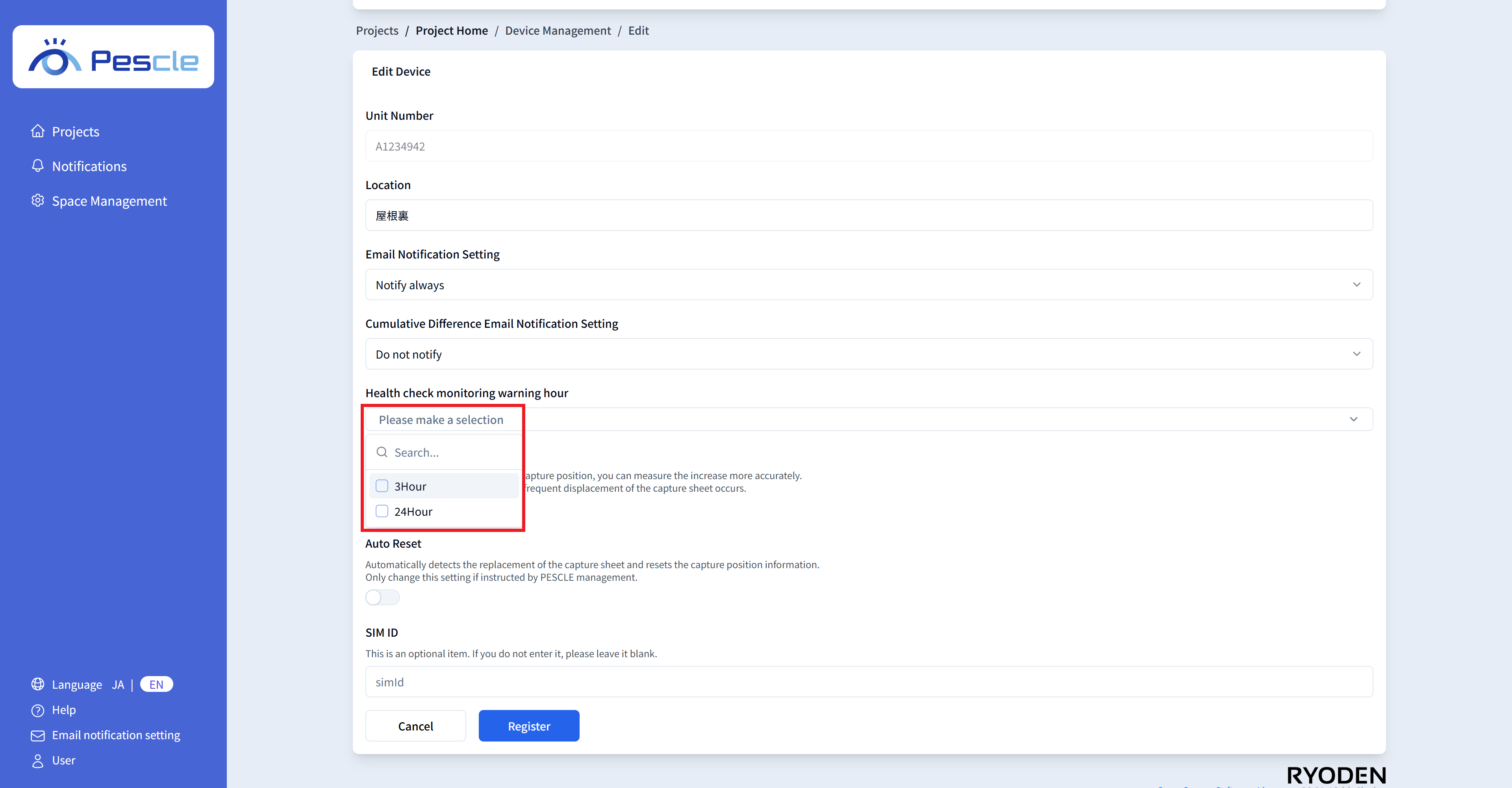
Send Email Notification for Camera Downtime
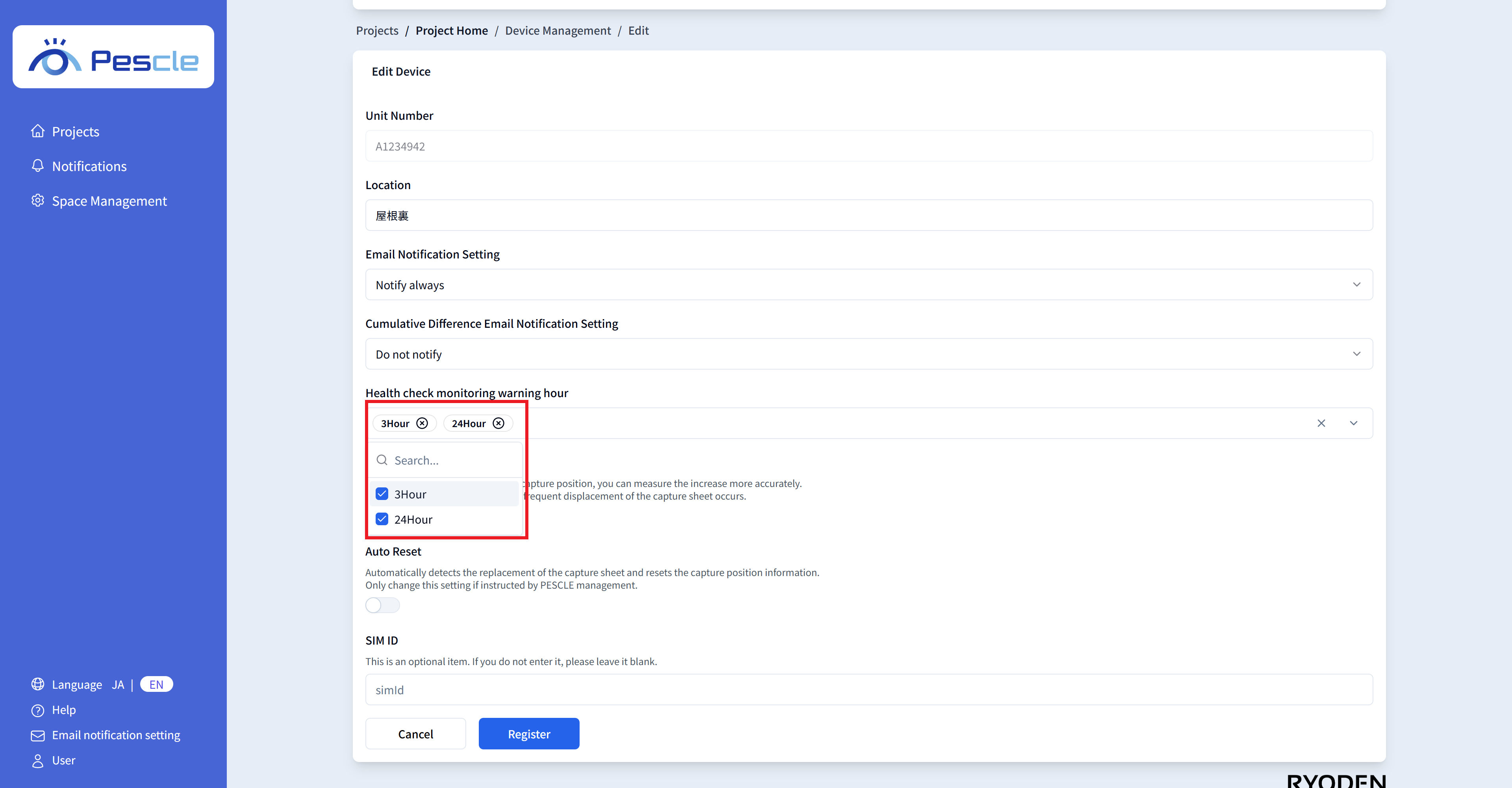
To receive notifications, select ‘Health check monitoring warning hour’ and turn on the checkboxes for the desired time intervals. When you have finished, click the ‘Register’ button.
Note
Currently, you can select ‘3 hours’ and ‘24 hours’.
To receive an email notification 3 hours after the insect trap camera last sent information, turn on the ‘3 hours’ checkbox.
To receive an email notification after 24 hours, turn on the ‘24 hours’ checkbox.
To receive both email notifications, turn on both checkboxes.
Change Email Notification Settings
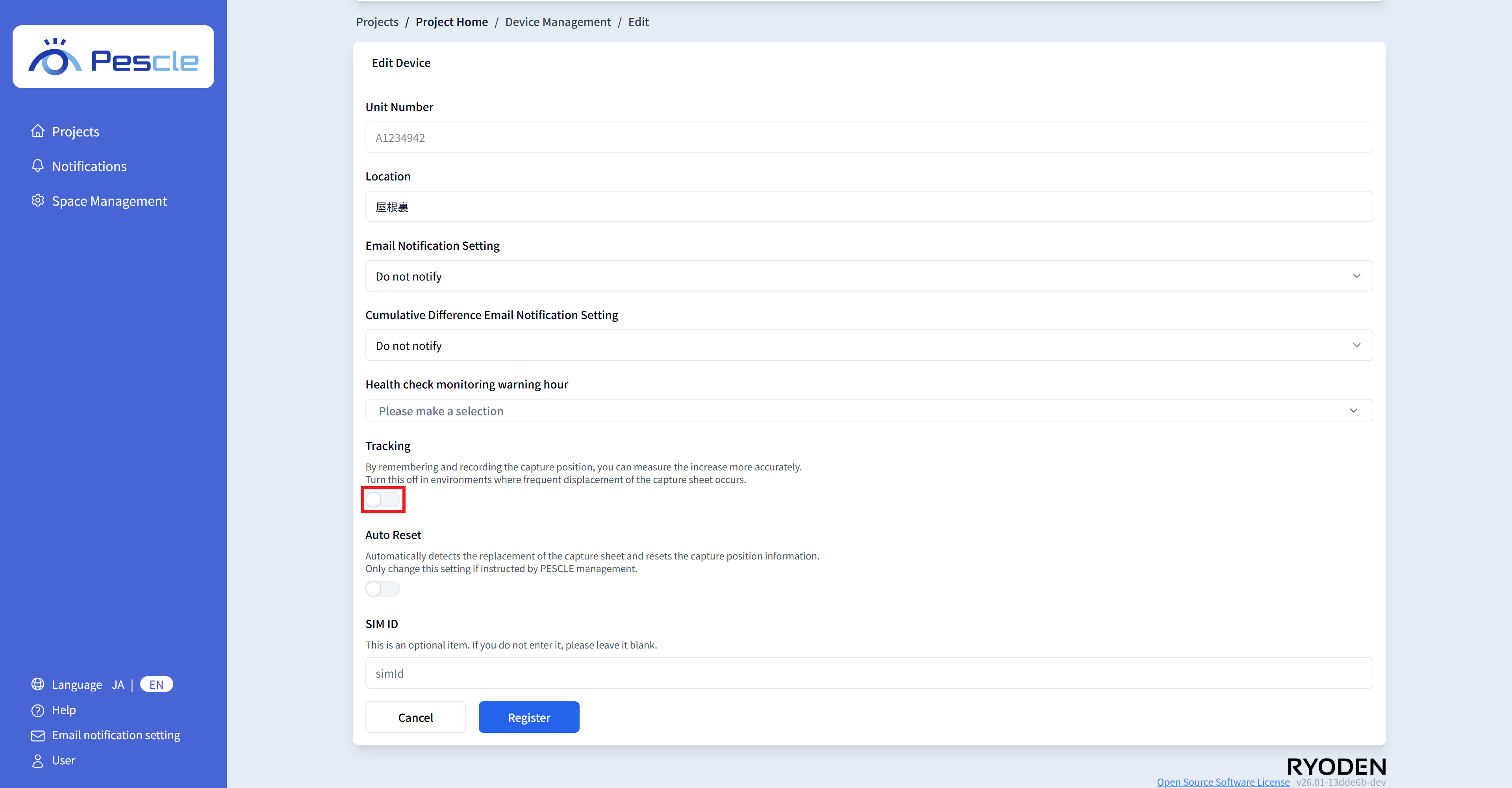
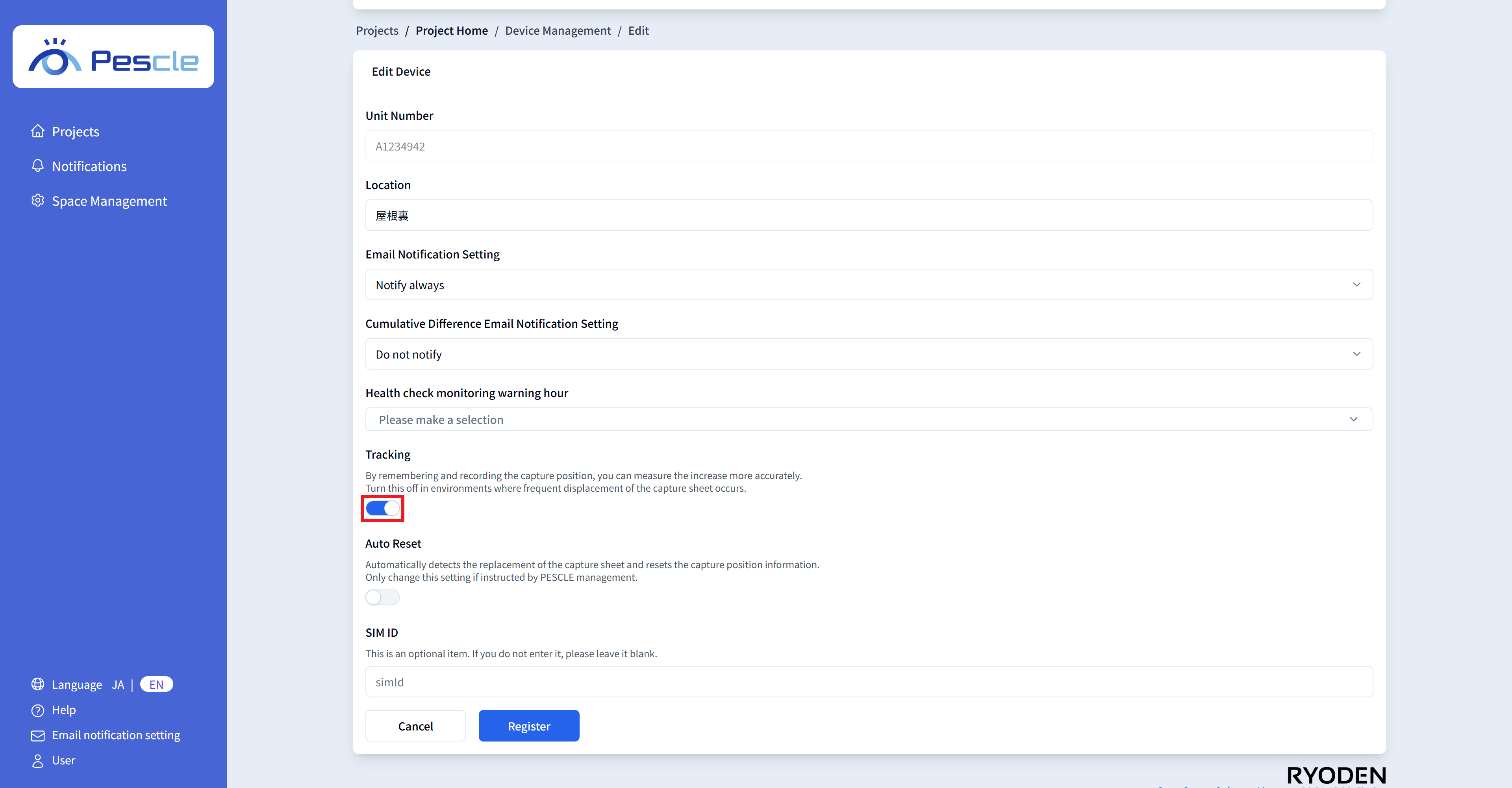
There are two types of insect capture location memory settings.
Disable Insect Capture Location Memory
To disable insect capture location memory, turn the toggle switch OFF.
Enable Insect Capture Location Memory
To enable insect capture location memory, turn the toggle switch ON.
Auto Reset Settings
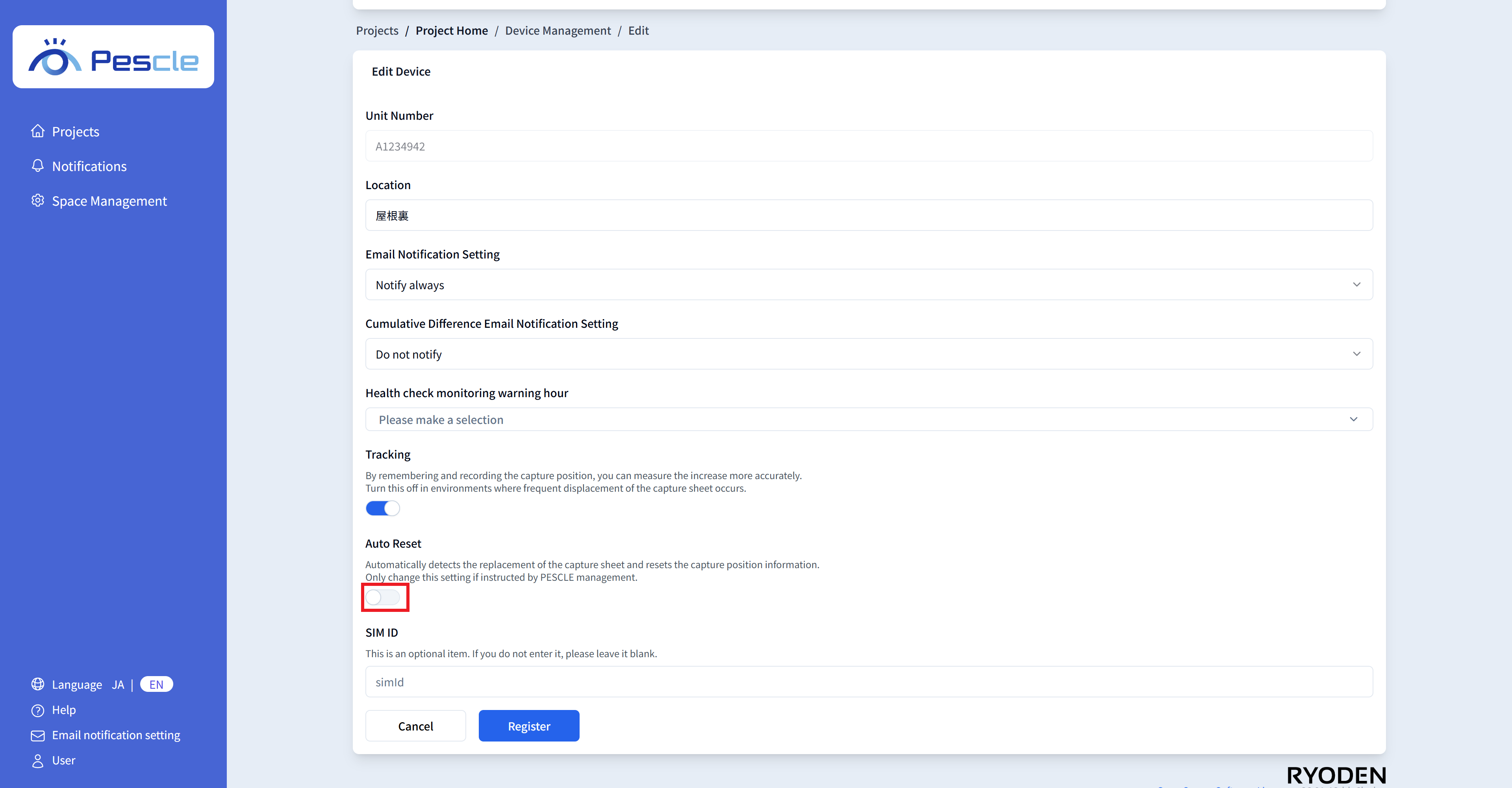
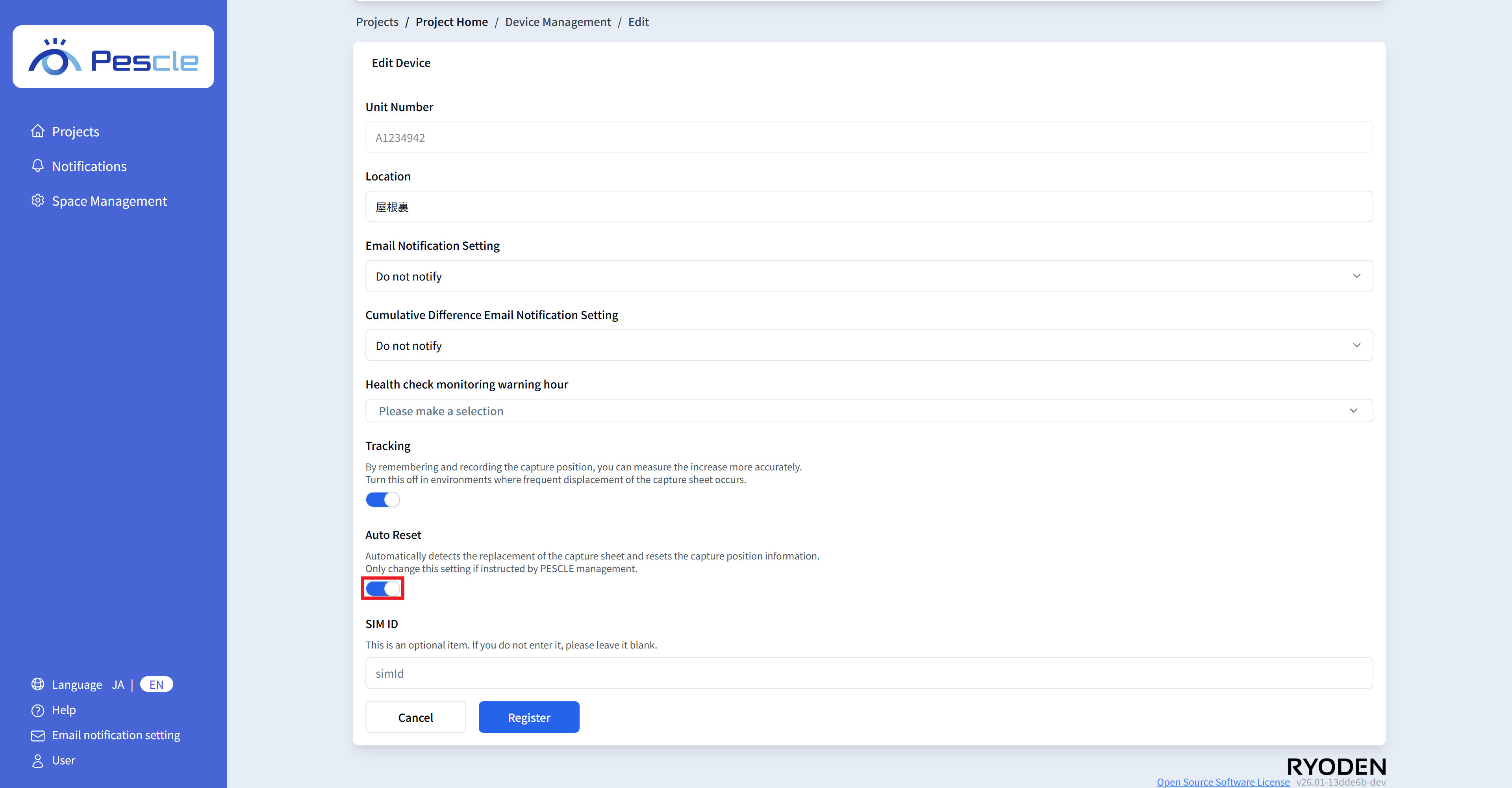
There are two types of auto reset settings.
Caution
Please change this feature only when instructed by PESCLE operations.
Disable Auto Reset
To disable auto reset, turn the toggle switch OFF.
Enable Auto Reset
To enable auto reset, turn the toggle switch ON.
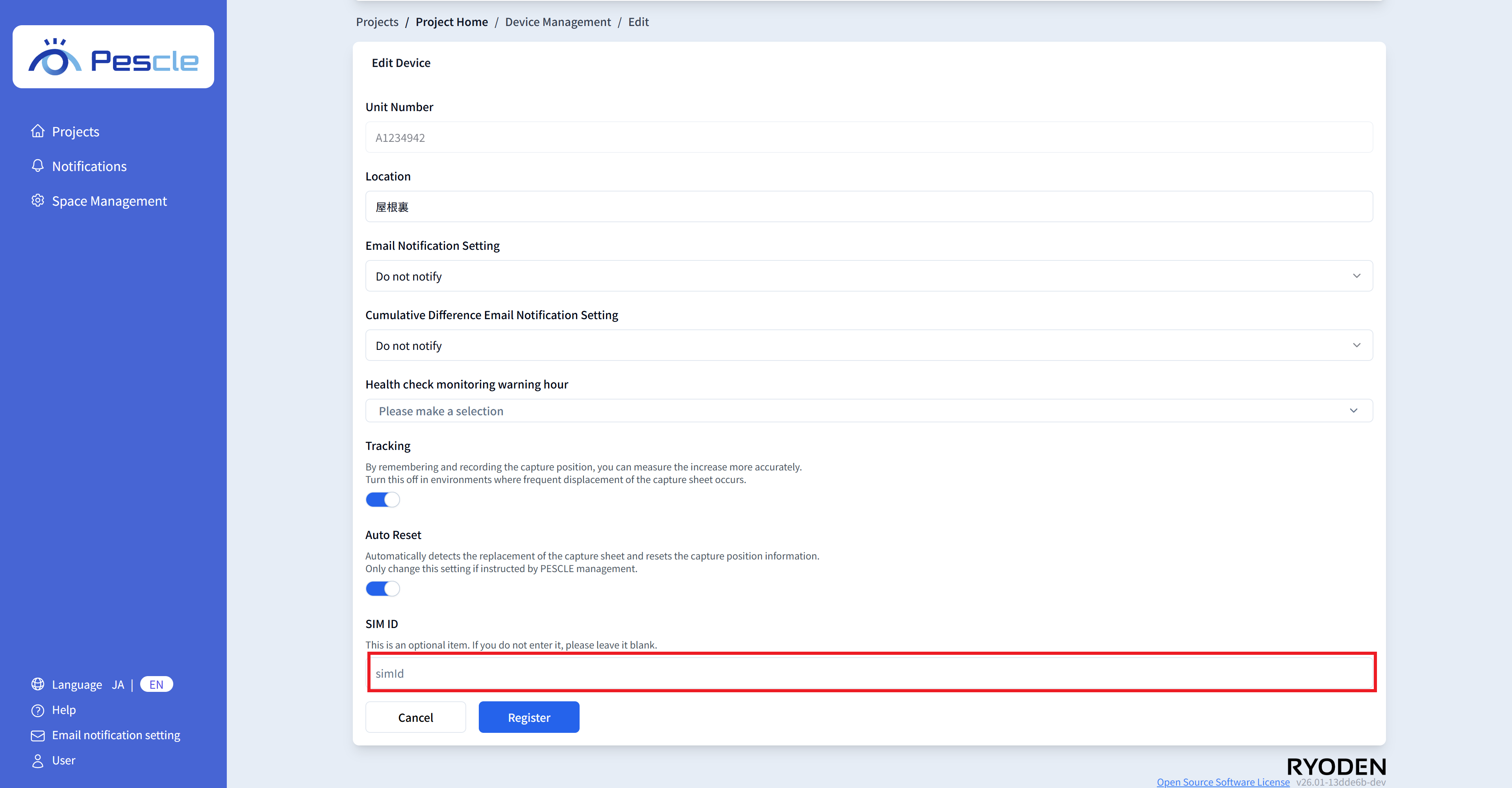
Enter SIM Number
You can enter the SIM number of the insect trap camera. This is optional, so there is no problem if you do not enter it.