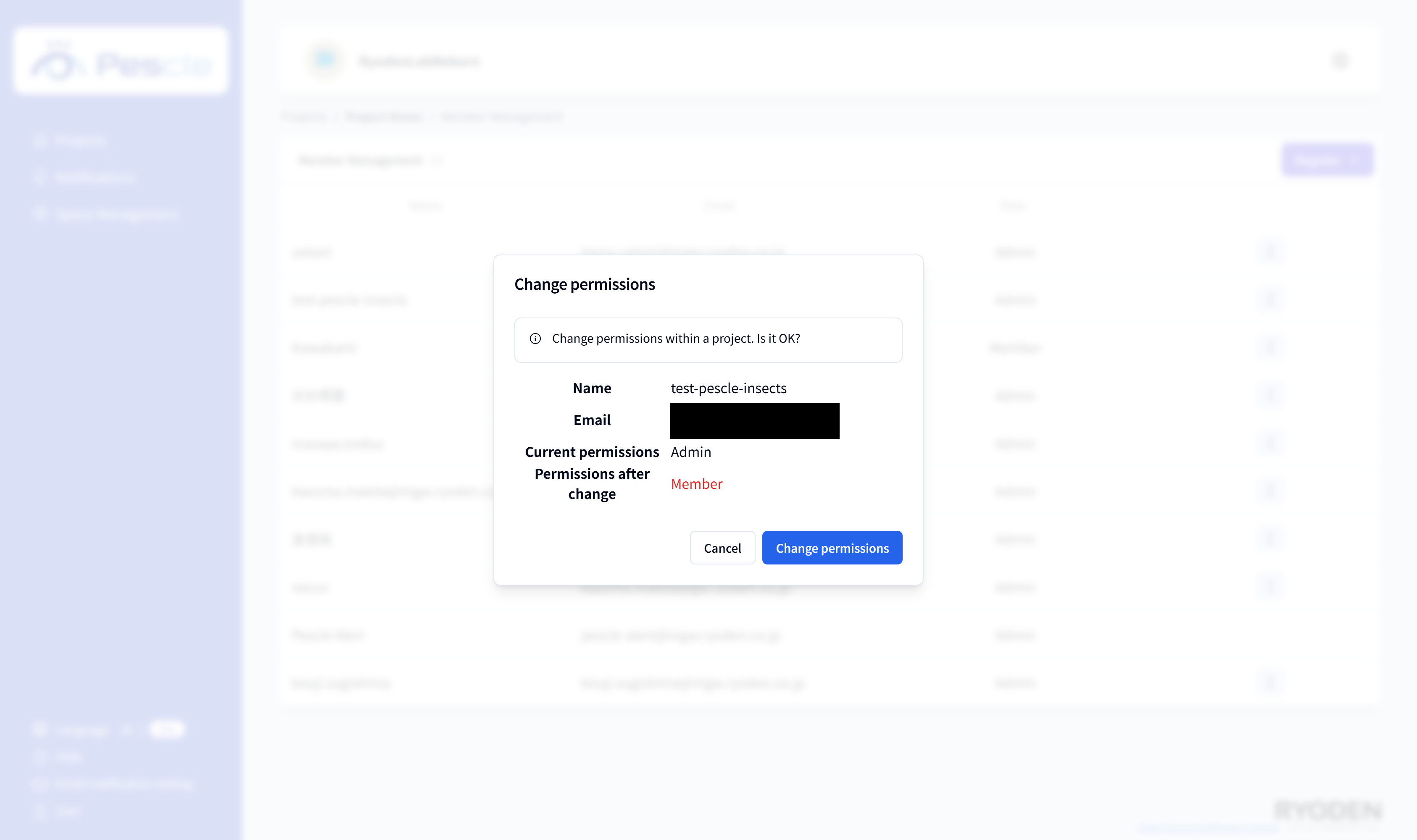
How to Change Member Permissions
Caution
This feature is for project administrators.
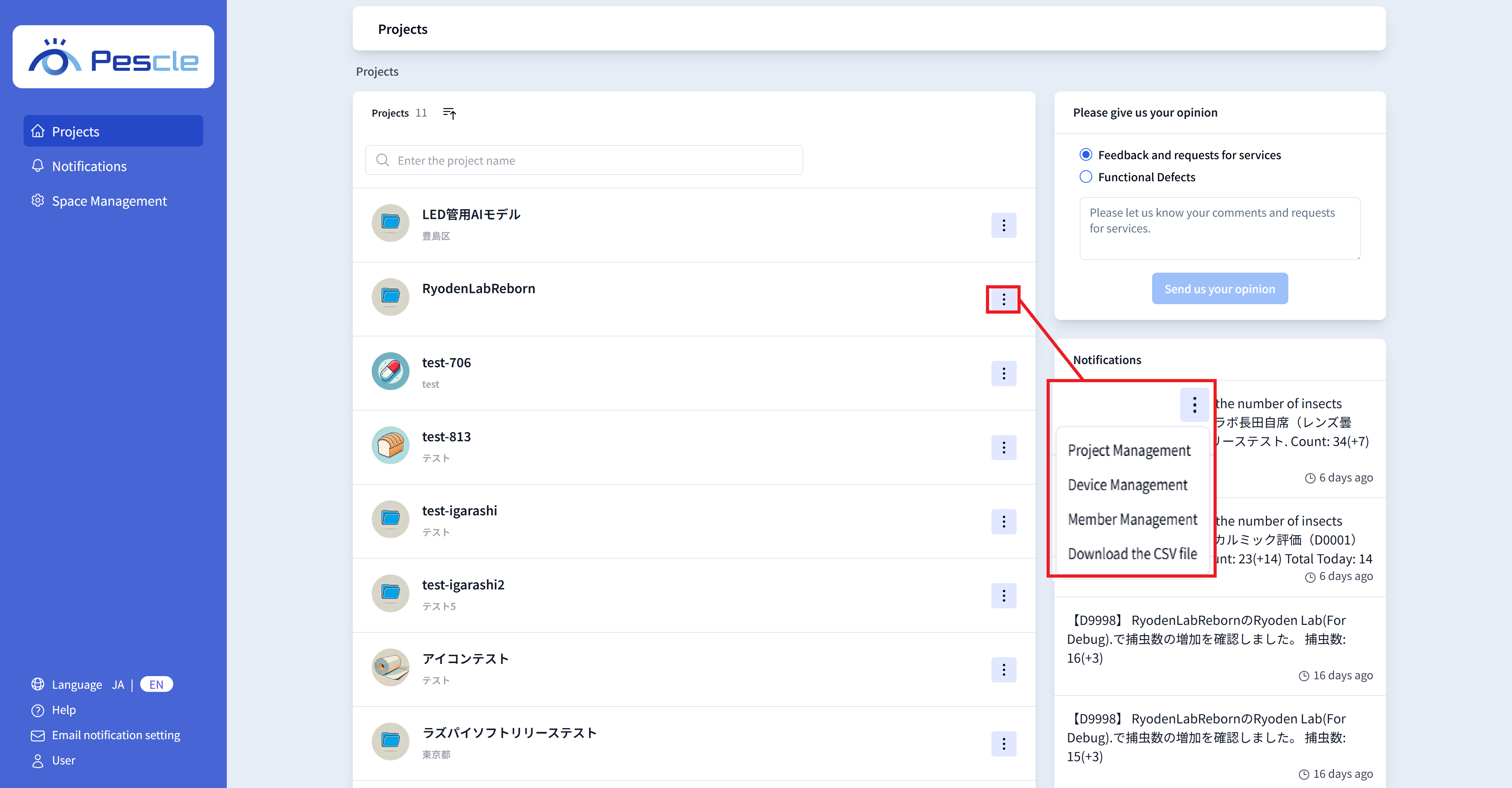
When you sign in, a list of projects will be displayed.
Click the vertical three-dot menu on the right side of the project where you want to change member permissions, and click “Member Management”.
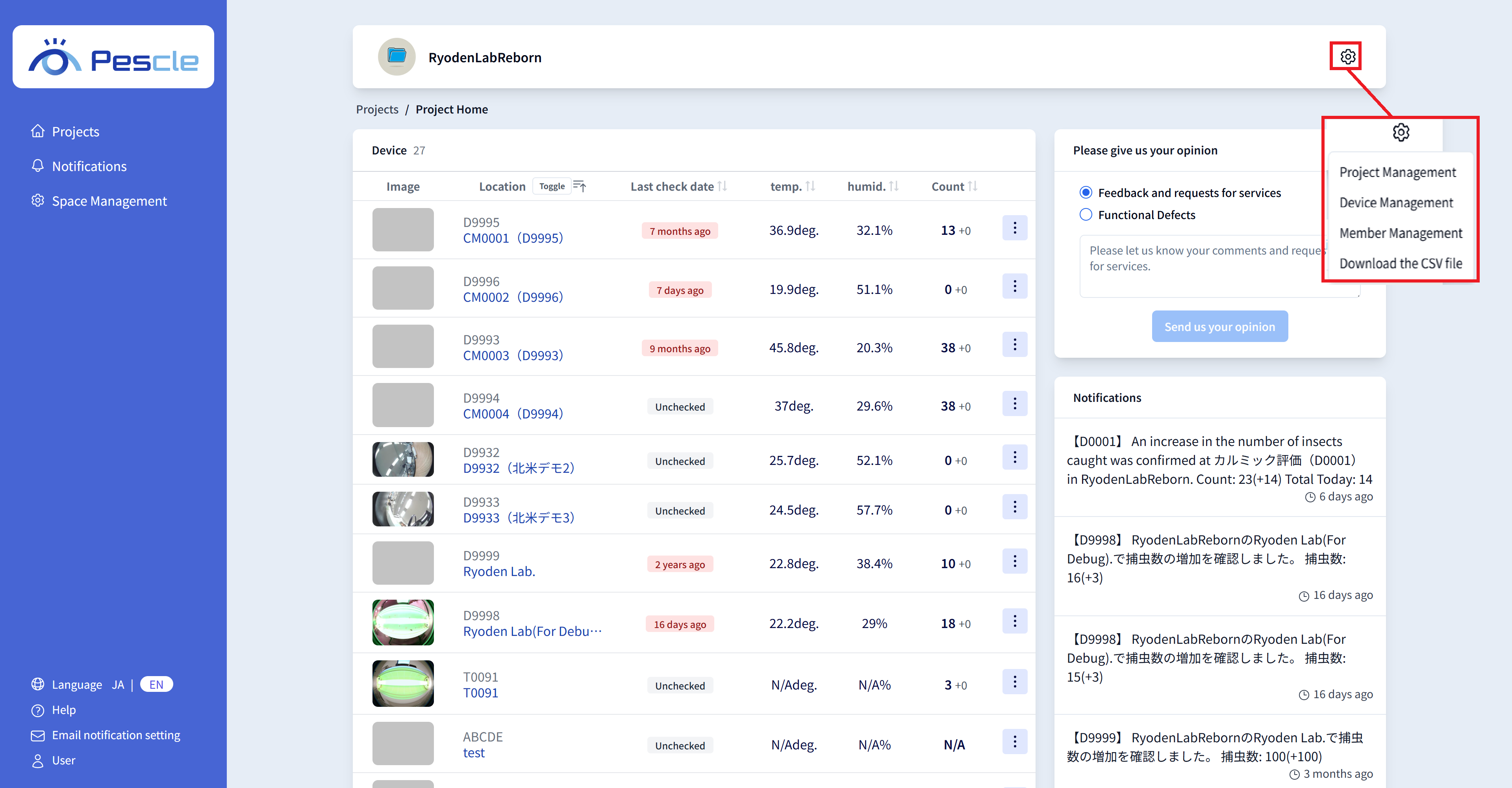
Hint
You can also navigate by clicking the gear icon in the upper right corner of the project home screen.
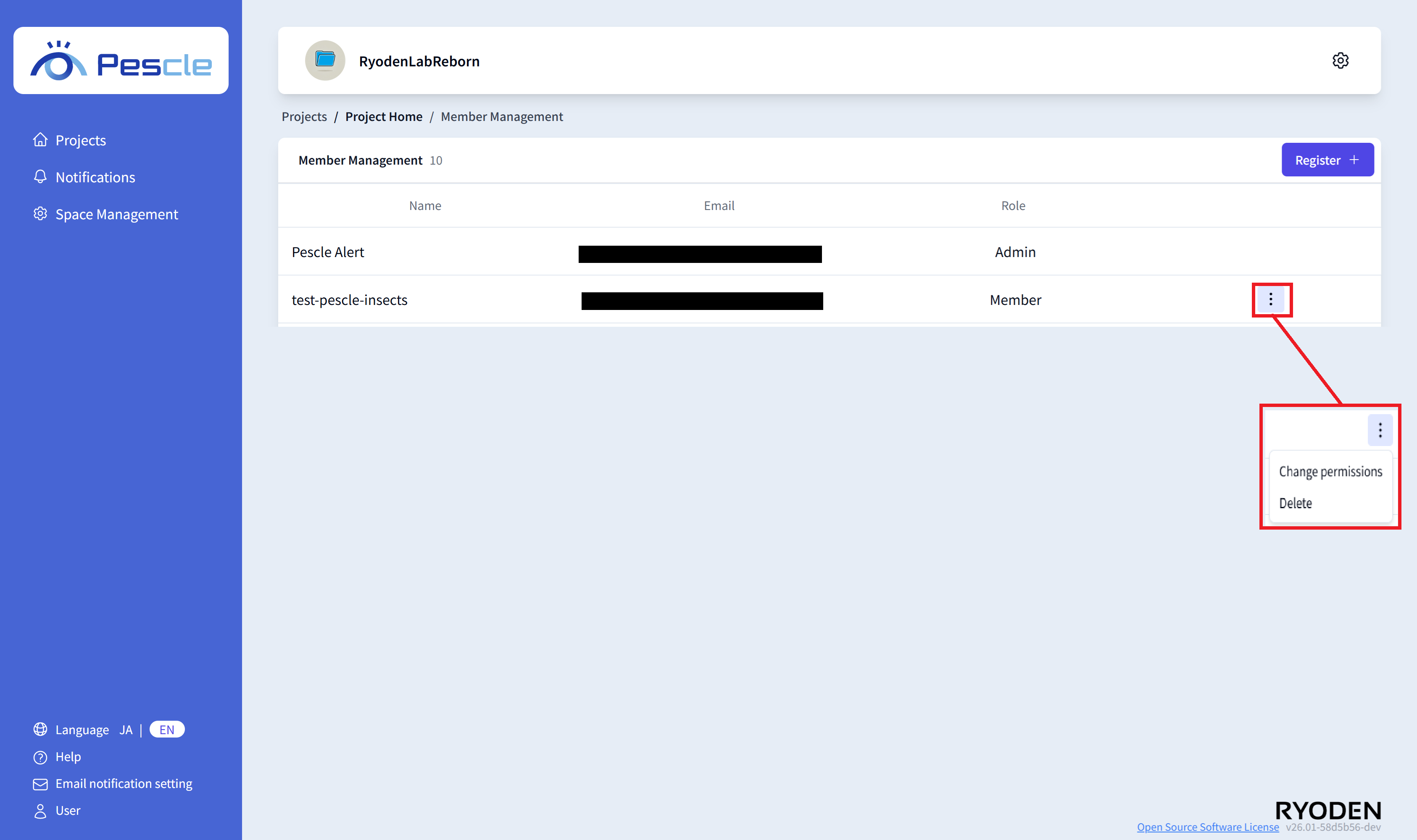
When the member management screen is displayed, click the vertical three-dot menu on the right side of the member whose permissions you want to change.
When the submenu is displayed, click “Change Permissions”.
When a dialog appears asking you to confirm the change of member permissions, click the “Change Permissions” button.