Troubleshooting
Q
Please tell me what to do if the insect trap camera does not work or if any abnormality occurs.
Check the connection of the insect trap camera |
→ [Step 1] Connection Check |
Restart the insect trap camera |
→ [Step 2] Restart |
Check the indicator lights of the insect trap camera |
→ [Step 3] Indicator Light Check |
Report the abnormality via the website |
→ [Step 4] Contact |
[Appearance of PIF-02]
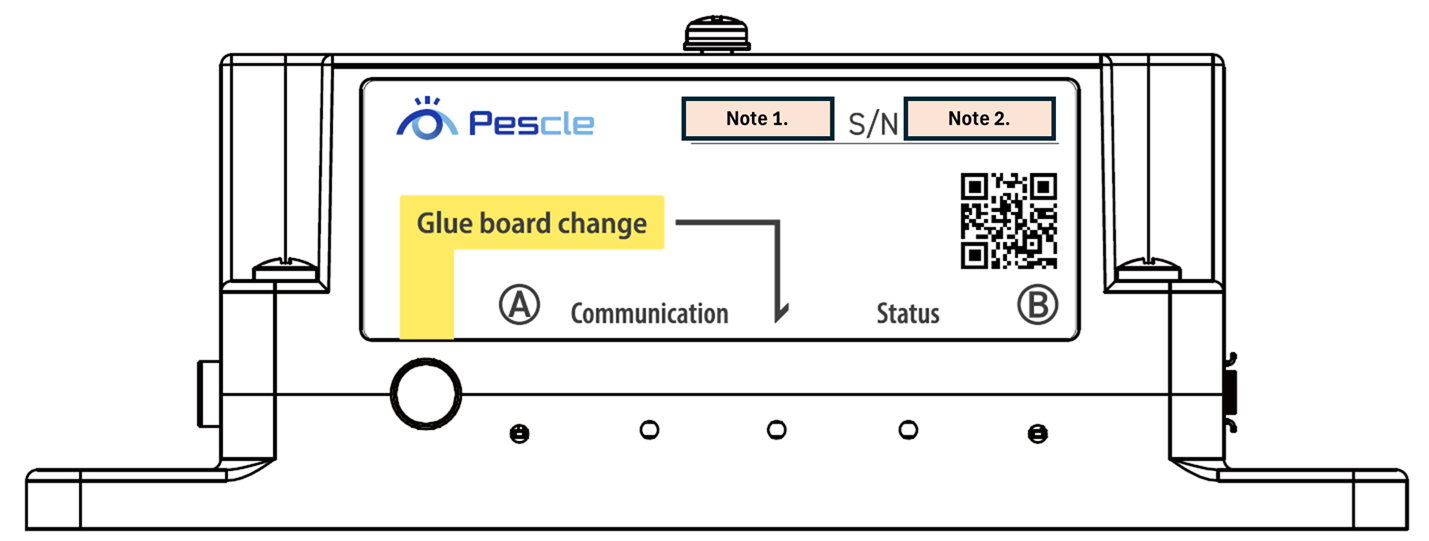
Note 1. Displays the unit number
Note 2. Displays the unit number
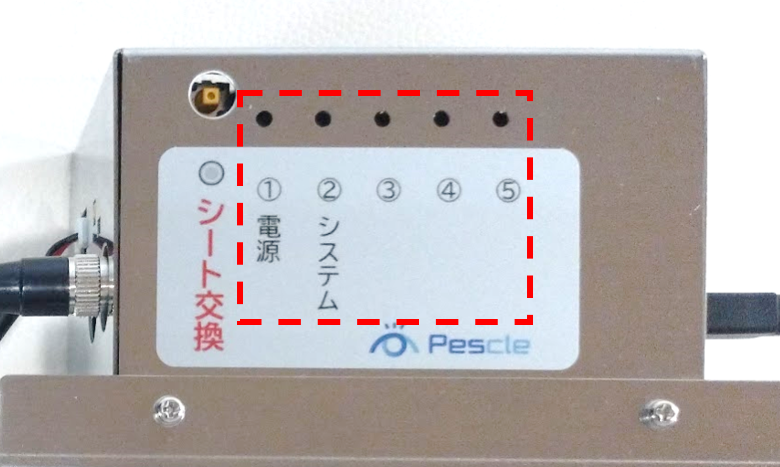
[Appearance of PIF-01]
[Step 1]
Connection Check
Please check that the USB cable for the insect trap camera, the cable for the temperature and humidity sensor, the antenna, and the AC adapter are all properly connected.
Make sure the USB cable from the camera is connected to the communication box.
→ If it is disconnected, connect it.[For PIF-02]
Make sure the cable for the temperature and humidity sensor is connected to both the sensor and the communication box.
→ If it is loose or disconnected, connect it.
[For PIF-01]
Make sure the two antennas are attached to the communication box.
→ If they are loose, attach them properly.Make sure the AC adapter is connected to the communication box.
→ If it is loose or disconnected, connect it.Make sure the AC adapter is plugged into the outlet.
→ If it is unplugged, plug it in.
[Step 2]
Restart
There may be a startup failure, so please restart the insect trap camera.
Unplug the AC adapter from the outlet and wait for one minute (to completely stop the communication box).
Plug the AC adapter back into the outlet.
Wait five minutes for the communication box of the insect trap camera to start up.
Check the indicator lights on the communication box of the insect trap camera.
[For PIF-02]
・’A’ lamp: blue blinking
・’Communication’ lamp: blue on
・’Status’ lamp: green on
・’B’ lamp: green blinking
[For PIF-01]
・’1. Power’ lamp: red on
・’2. System’ lamp: green blinking irregularly
* If the indicator lights in step 4 are different, the insect trap camera may be malfunctioning or the radio environment may be poor.
Please check the indicator lights in [Step 3] and then contact us in [Step 4].
[Step 3]
Indicator Light Check
Please check the indicator lights on the communication box during any 15–55 minute period (for example, 13:15–13:55).
* The reason for excluding the 0–15 minute period of each hour is that the camera is shooting or transmitting data during that time.
When operating normally, the indicator lights will be in the following on, blinking, or off states.
[For PIF-02]
Lamp Name |
Normal Display |
Description |
A |
Blue: Blinking |
Indicates the LTE connection status of the communication box |
Communication |
Blue: On |
Indicates the communication network status |
(Sheet Replacement) |
Off |
Indicates the sheet replacement status |
Status |
Green: On |
Indicates the program status of the communication box |
B |
Green: Blinking |
Indicates the program status of the communication box (power management/liveness monitoring) |
[For PIF-01] *Latest software version
Lamp Name |
Normal Display |
Description |
1. Power |
Red: On |
Indicates the power supply status |
2. System |
Green: Blinking |
Indicates the operation status of the communication box |
3 |
Off |
Indicates the communication network status |
4 |
Off |
Indicates the sheet replacement status |
5 |
Off |
Indicates the program status of the communication box |
[For PIF-01] *Old software version
Lamp Name |
Normal Display |
Description |
1. Power |
Red: On |
Indicates the power supply status |
2. System |
Green: Blinking |
Indicates the operation status of the communication box |
3 |
Off |
Indicates the camera operation status |
4 |
Off |
Indicates the sheet replacement status |
5 |
Off |
Indicates the photo data transmission status |
[Step 4]
Contact
If the insect trap camera does not operate or any abnormality occurs, please check the following “Function Malfunctions.”
Please inform us of the details of the abnormality and the status of the indicator lights.