How to Register a Router in a Project
Caution
This feature is intended for project administrators.
Register the routers used in the project. For how to install a router, see How to Use the ROUTER.
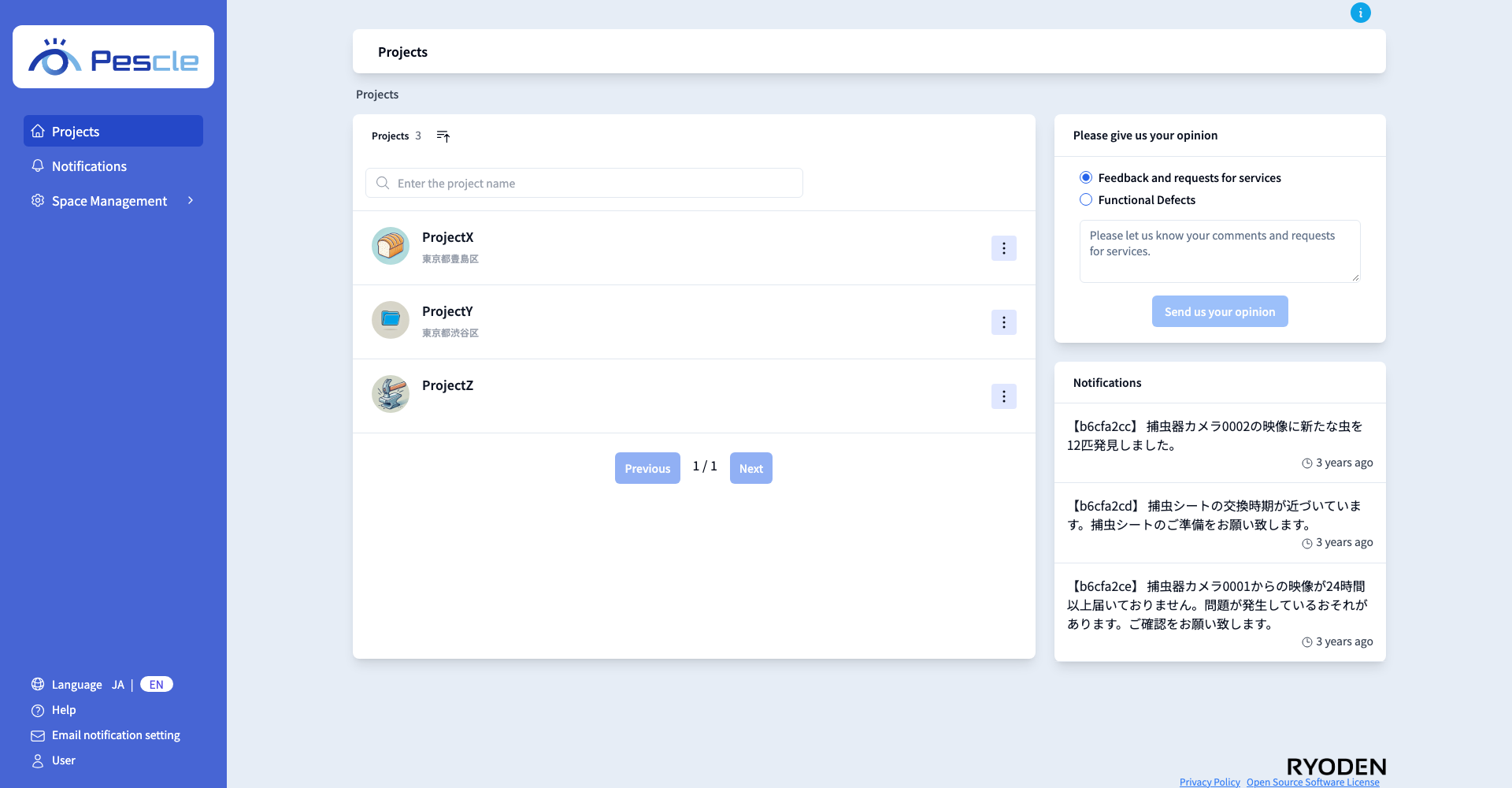
After signing in, the project list will be displayed. Click the name of the project to which you want to register a router.
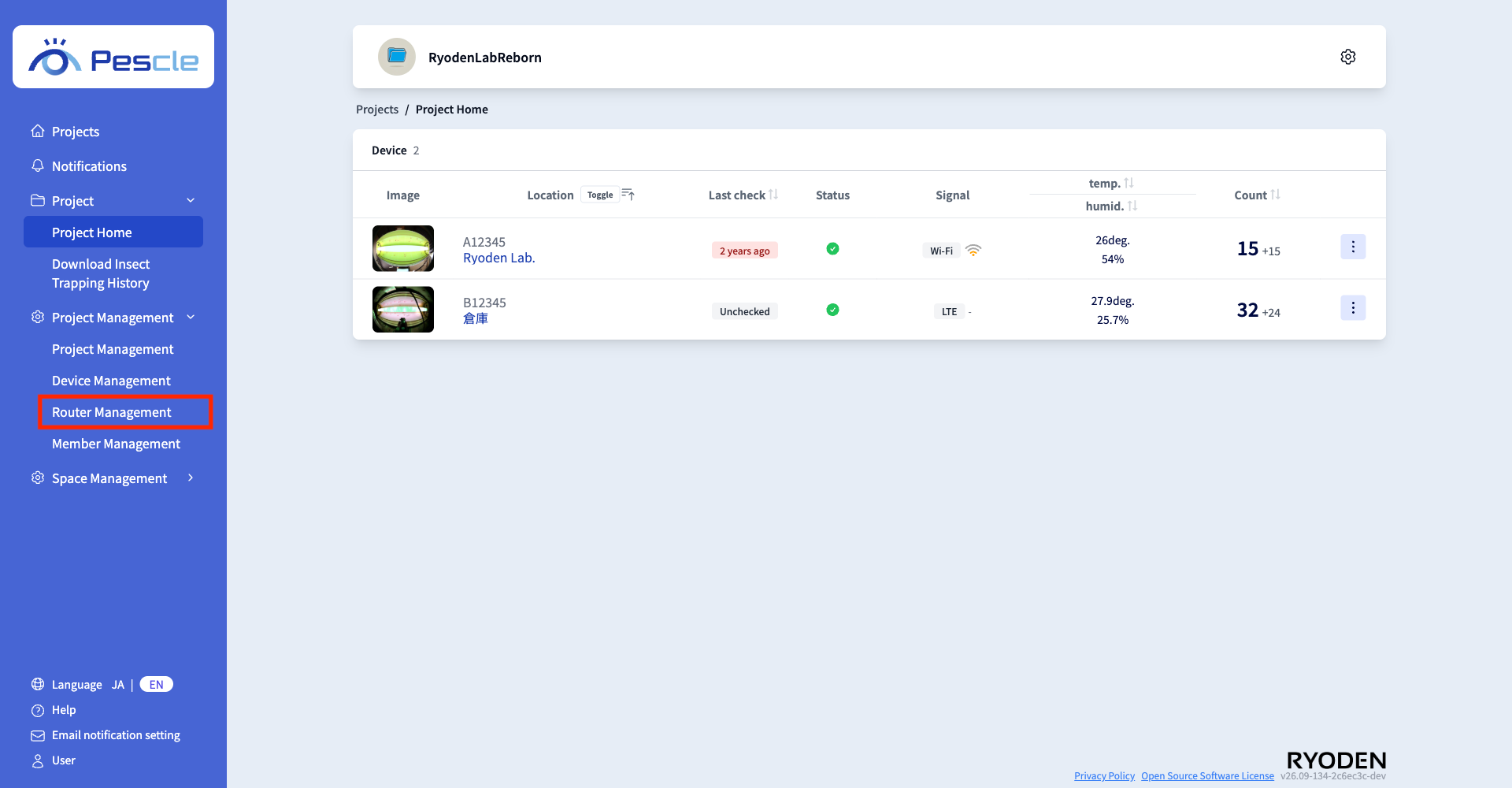
The project home screen will be displayed. In the menu on the left side of the screen, click “Router Management” under “Project Management”.
Hint
You can also click the gear icon in the upper right of the screen and select “Router Management” from the menu that appears.
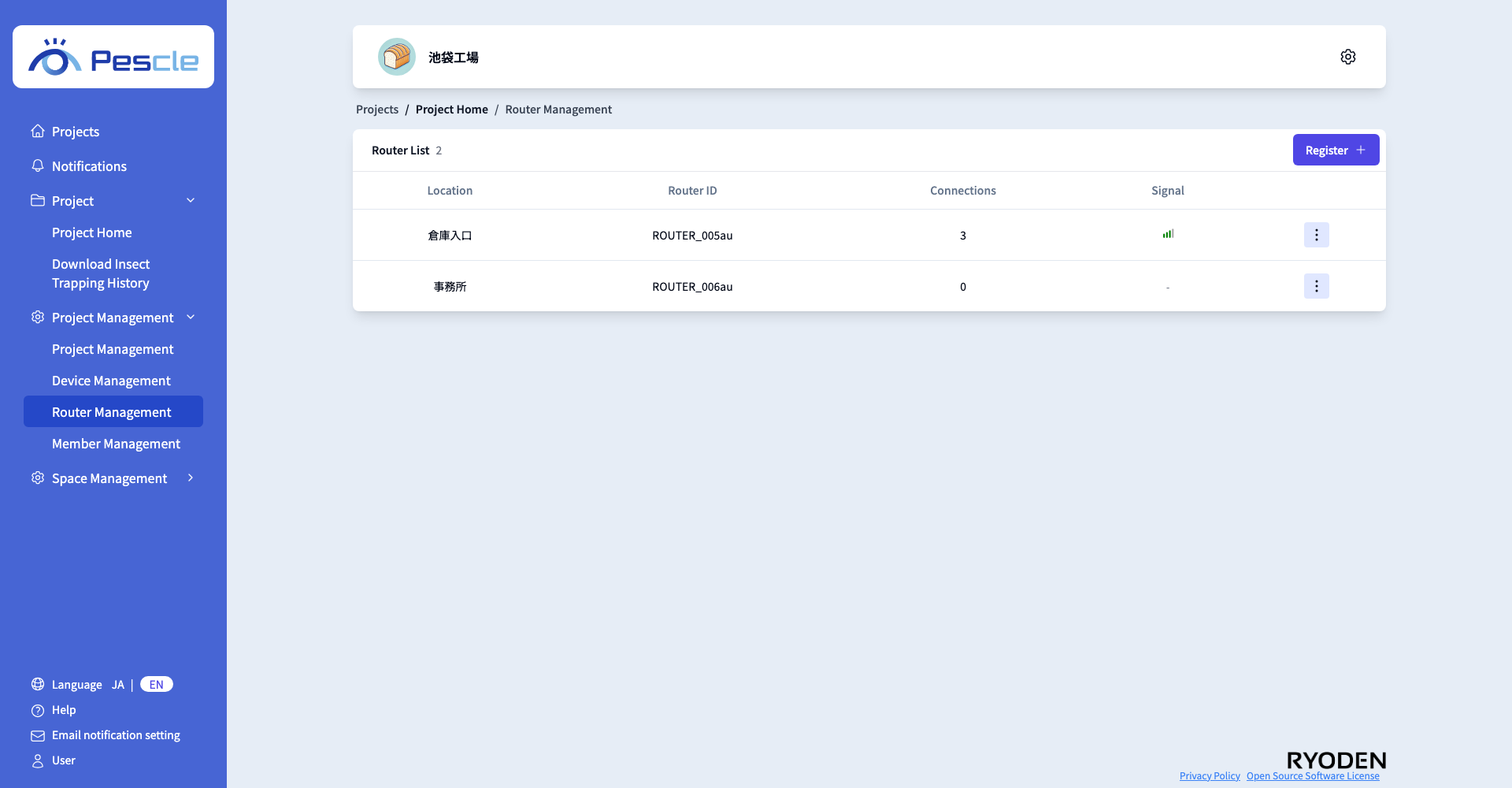
The router management screen will be displayed. Click the “Register” button.
Router Registration Screen
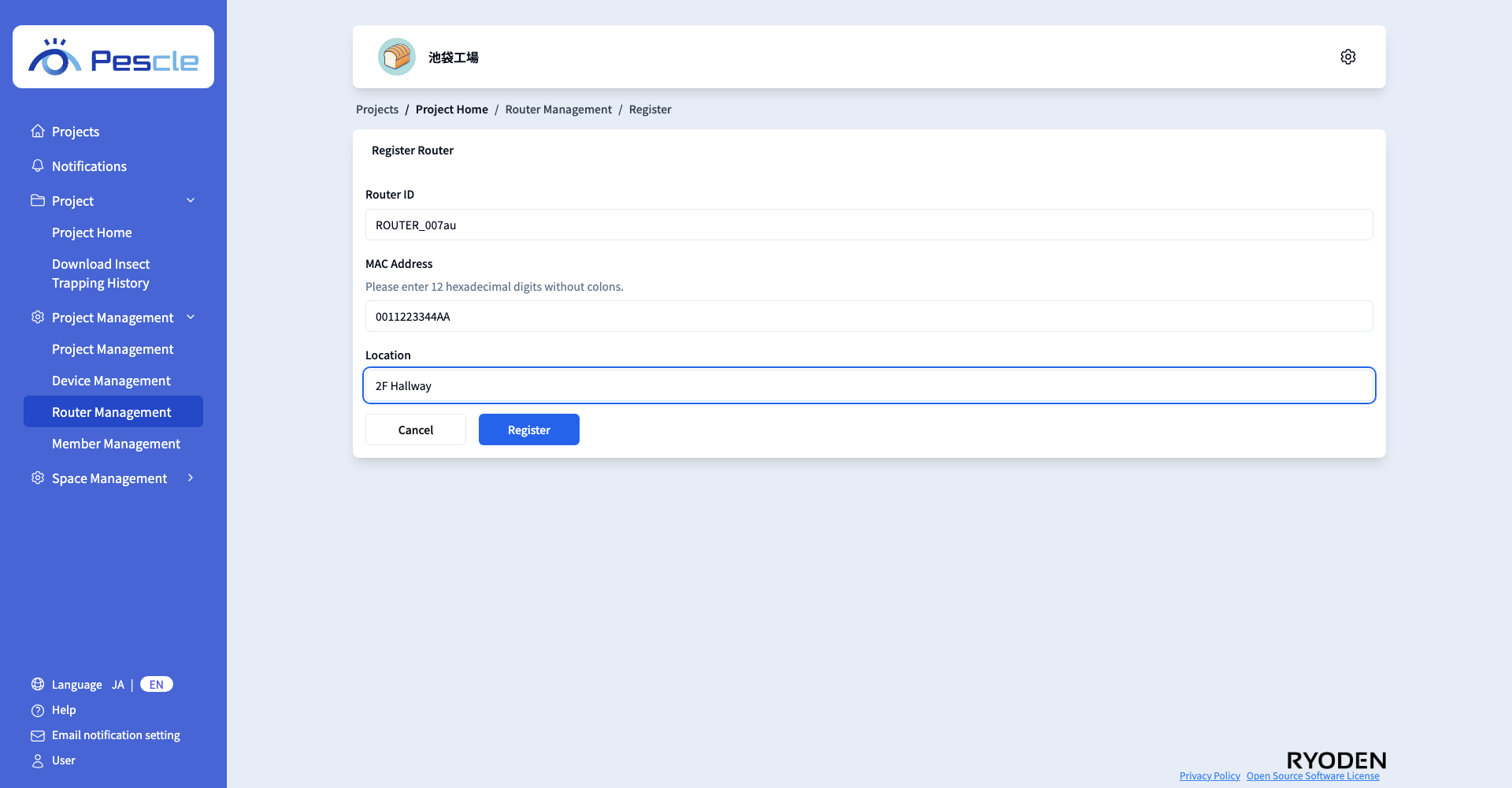
On the router registration screen, enter the router ID, MAC address, and location, then click the “Register” button.
Item |
Description |
|---|---|
Router ID |
Enter the router ID of the router to register. This field is required. |
MAC Address |
Enter the MAC address of the router to register as 12 hexadecimal digits without colons. This field is required. Characters other than 0-9 and A-F cannot be entered. Letters are displayed in uppercase even if you type them in lowercase. |
Location |
Enter the location where the router is installed. This field is required. It is displayed in the router list. |
If there is an error in your input, one of the following messages will be displayed below the field.
Message |
Action |
|---|---|
Please enter the router ID |
Enter the router ID. |
Please enter the MAC address as 12 hexadecimal digits without colons |
Enter the MAC address with 12 digits. |
Please enter the location |
Enter the location. |
This router cannot be registered. Please check that the router ID and MAC address are correct and that it is not already registered. |
Check that the router ID and MAC address are correct and that the router is not already in the router list. |
Checking the Registration Result
When the registration succeeds, you will return to the router management screen, and the registered router will be displayed in the list.
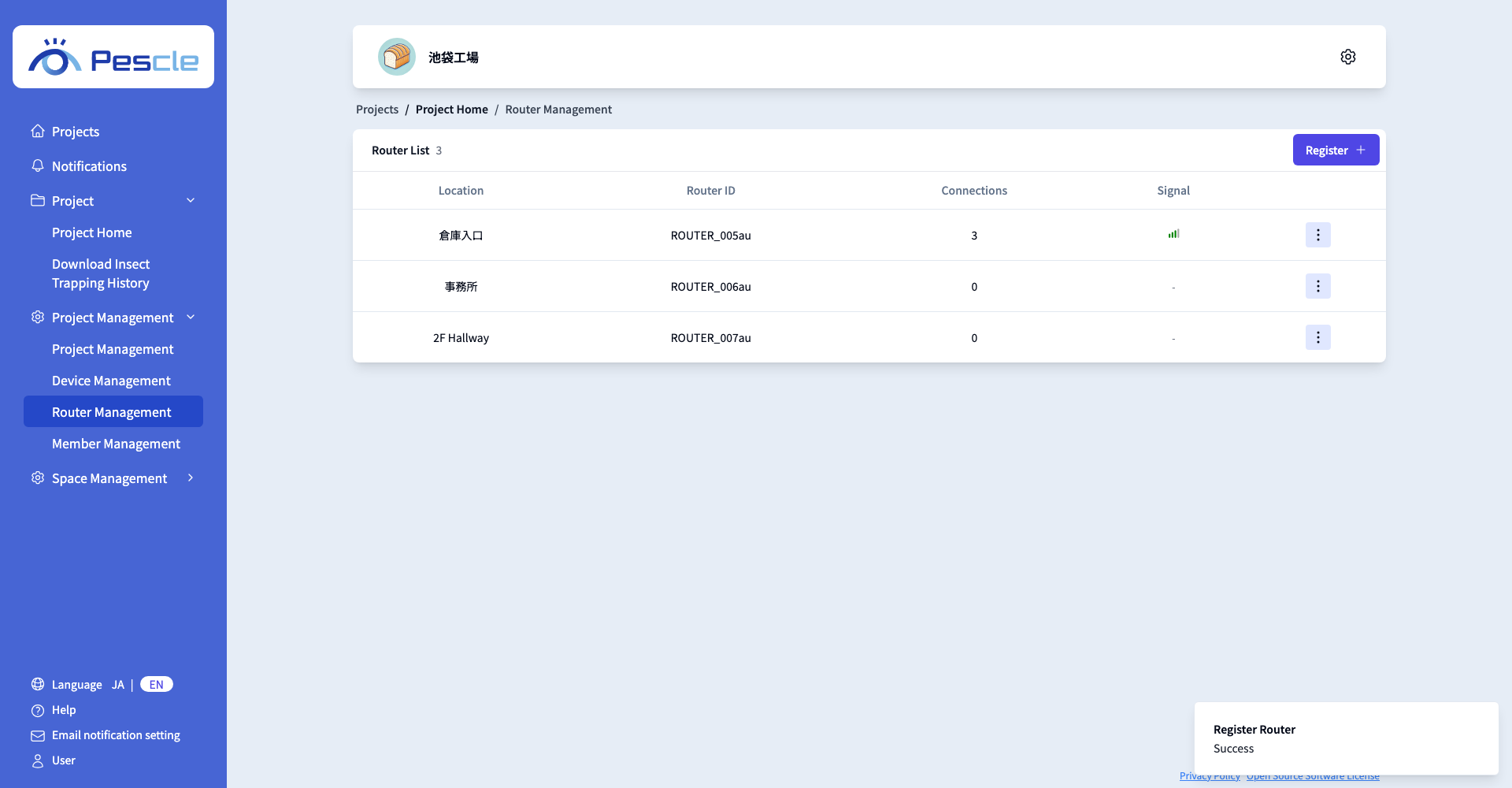
The list displays the location, router ID, number of connections, and signal strength. The signal strength is shown as an icon, and “-” is displayed if it has not been measured.
To cancel the registration, click the “Cancel” button on the router registration screen to return to the router management screen.
