How to Reinvite a Member
Caution
This feature is for project administrators.
When you sign in, a list of projects will be displayed.
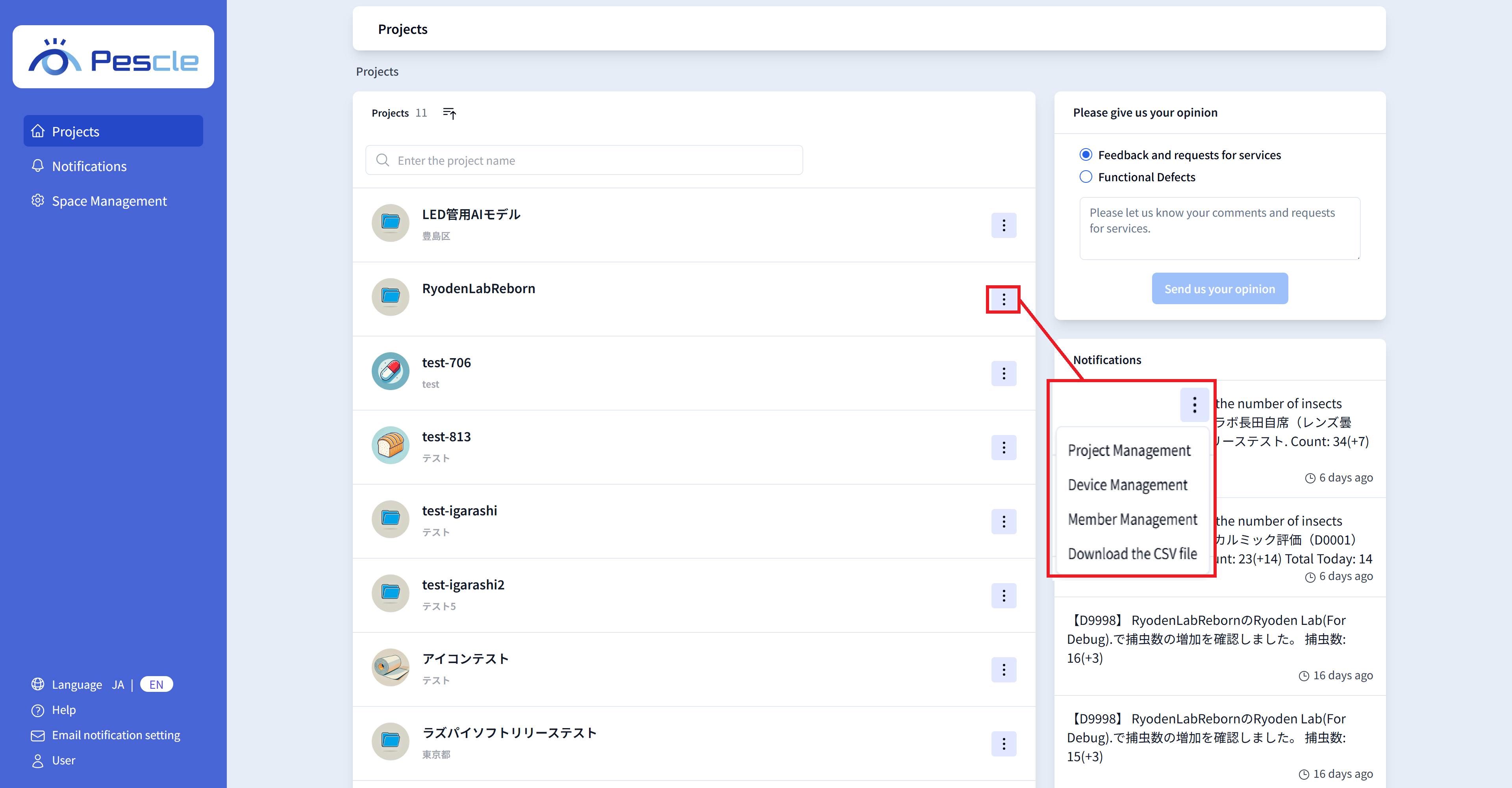
Click the vertical three-dot menu on the right side of the project for which you want to reinvite a member, and click “Member Management”.
Hint
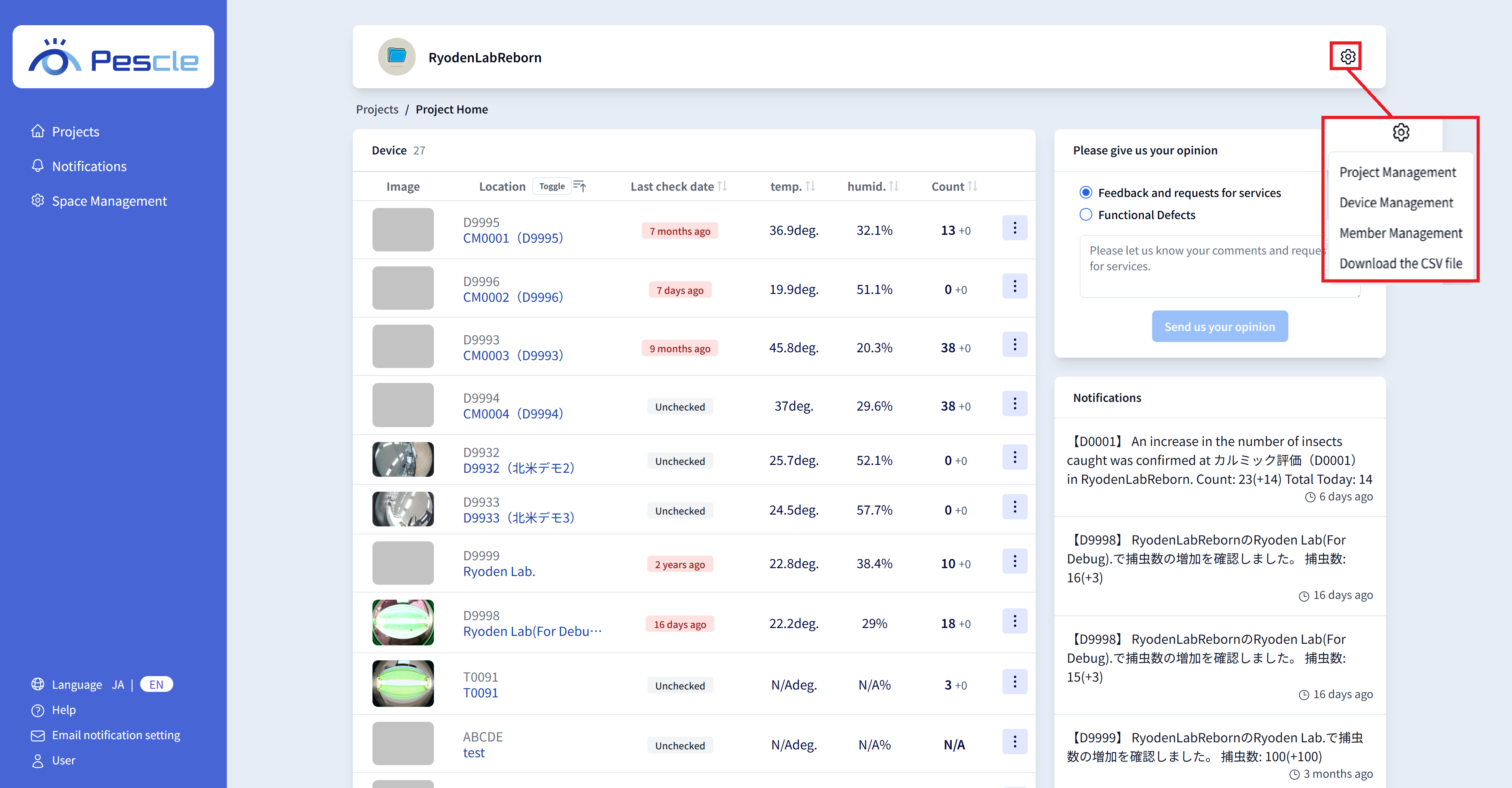
You can also navigate by clicking the gear icon in the upper right corner of the project home screen.
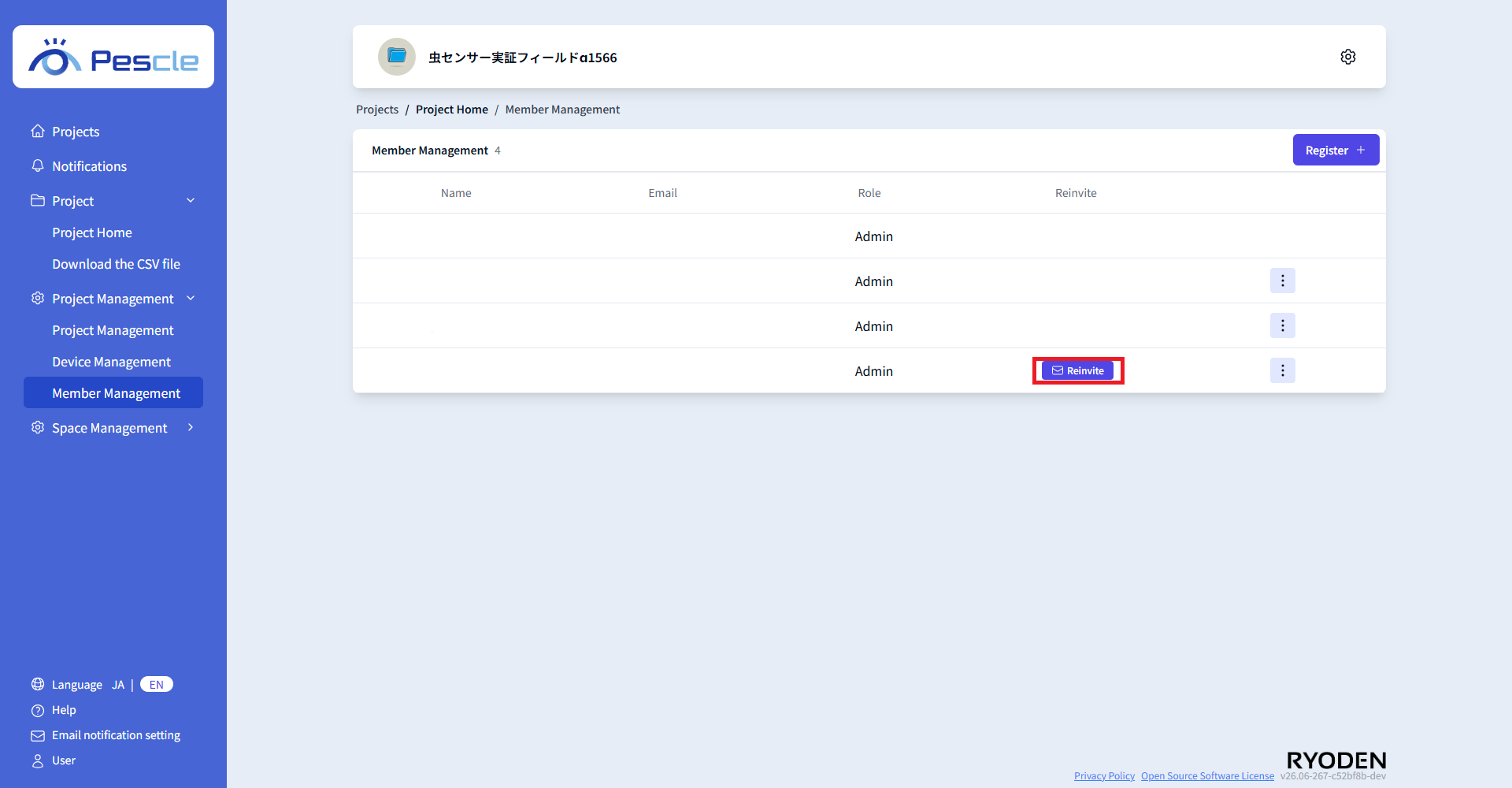
When the member management screen is displayed, click the “Reinvite” button in the row of the member you want to reinvite.
Note
The “Reinvite” button is only displayed for members who have not yet completed the password setup described in the invitation email.
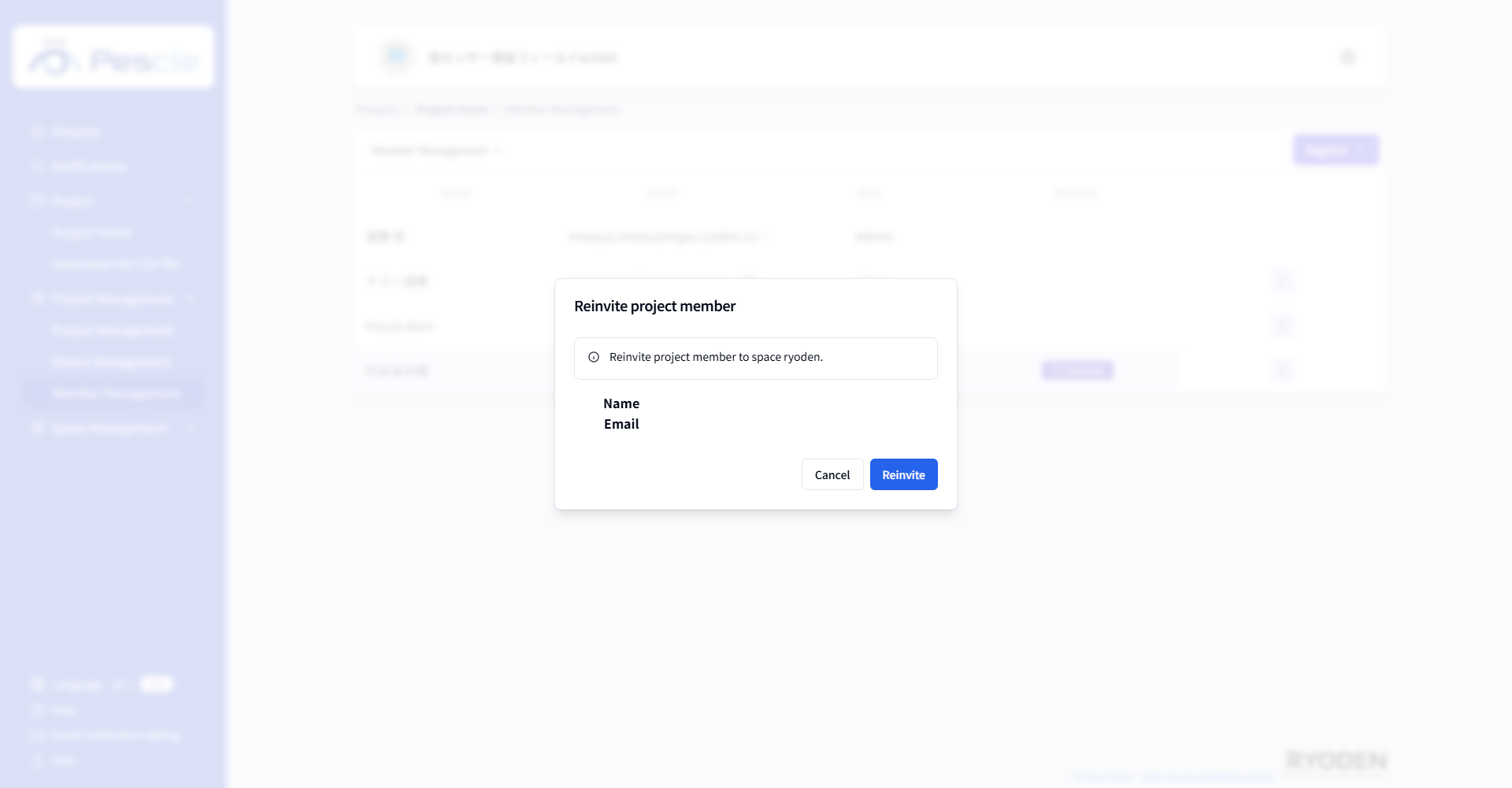
When a dialog appears asking you to confirm the reinvitation of the member, check the name and email address, and click the “Reinvite” button.