How to View the Communication Report
The communication report allows you to check the communication status of an insect trap camera (the number of receptions per day) in a monthly calendar format.
After signing in, the project list will be displayed. Click the project that contains the insect trap camera you want to view.
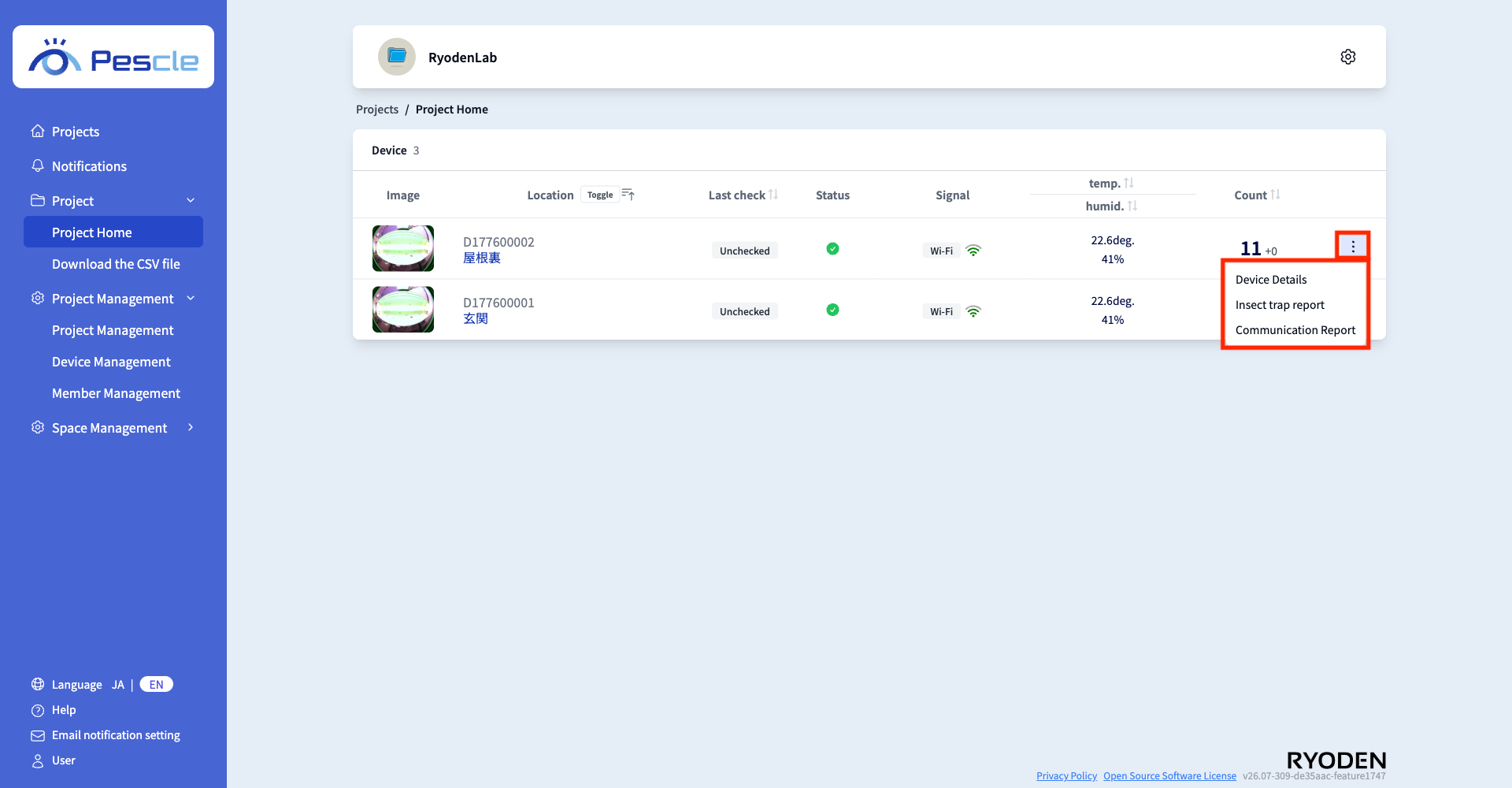
The project home screen will be displayed. Click the vertical three-dot menu on the right side of the insect trap camera you want to view. When the submenu appears, click “Communication Report.”
How to Read the Communication Report
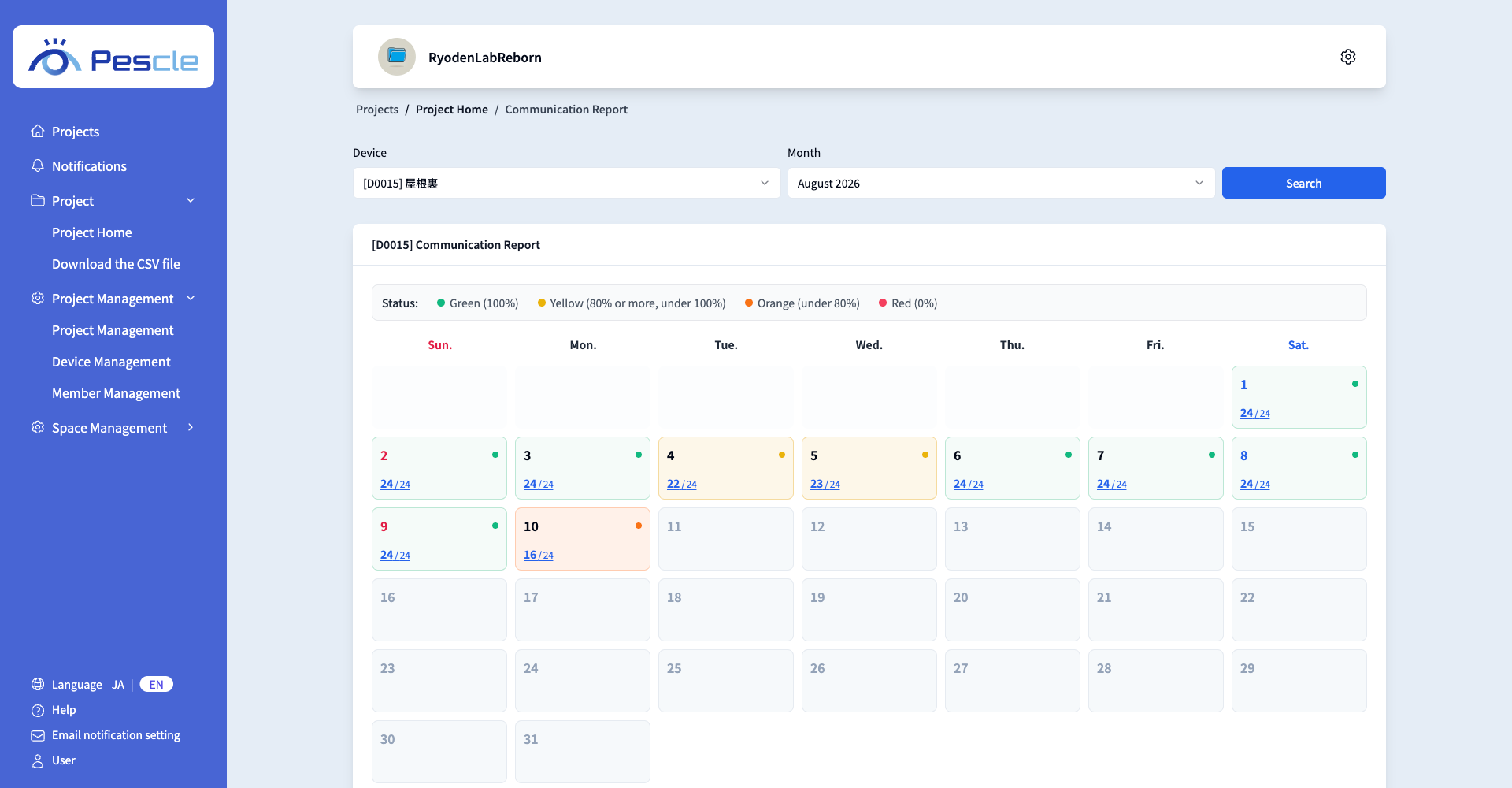
The communication report screen consists of the following three sections.
Search Filters
You can change the device and month to display.
Device
You can select an insect trap camera in the project in the format “[unit number] location.”
Month
You can select the month to display. You can select from the current month up to one year back.
Select the conditions and click the “Search” button to reload the communication report.
Status
Each day on the calendar is color-coded according to the ratio of receptions to the expected number of receptions per day (24).
Green : 100%
Yellow : 80% or more, under 100%
Orange : under 80% (one or more)
Red : 0% (no receptions)
Calendar
The number of receptions per day is displayed for each day in the format “receptions / 24” (e.g., 15 / 24).
Tip
Click a date to go to the “Insect Detection History” screen for that day. Even if there is no insect detection history for that day, the selected date remains displayed, so you can check the status of days without communication as is. See How to View Insect Detection History for details.
Note
Future dates are grayed out and cannot be clicked.