How to View the Project Home
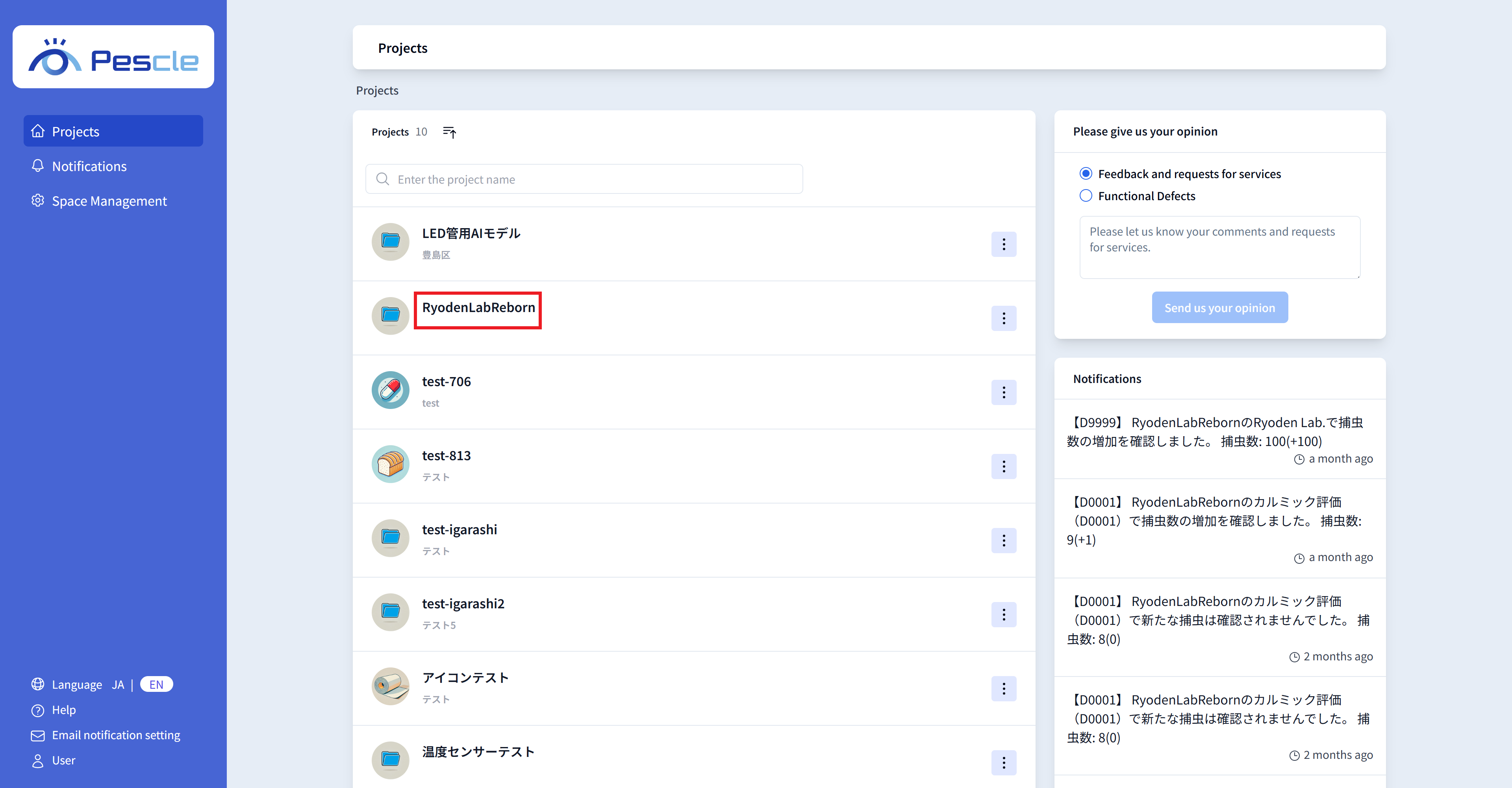
After signing in, the project list will be displayed. Click the project that contains the insect trap camera you want to view.
Tip
If you enter text in the search box above, you can filter the displayed projects.
You can switch between ascending and descending order using the sort button above the search box.
If there are more than 10 projects, you can switch pages using the “Previous” and “Next” buttons at the bottom of the screen.
How to Read the Project Home
A list of insect trap cameras belonging to the project is displayed on the project home. You can check the latest status of each insect trap camera.
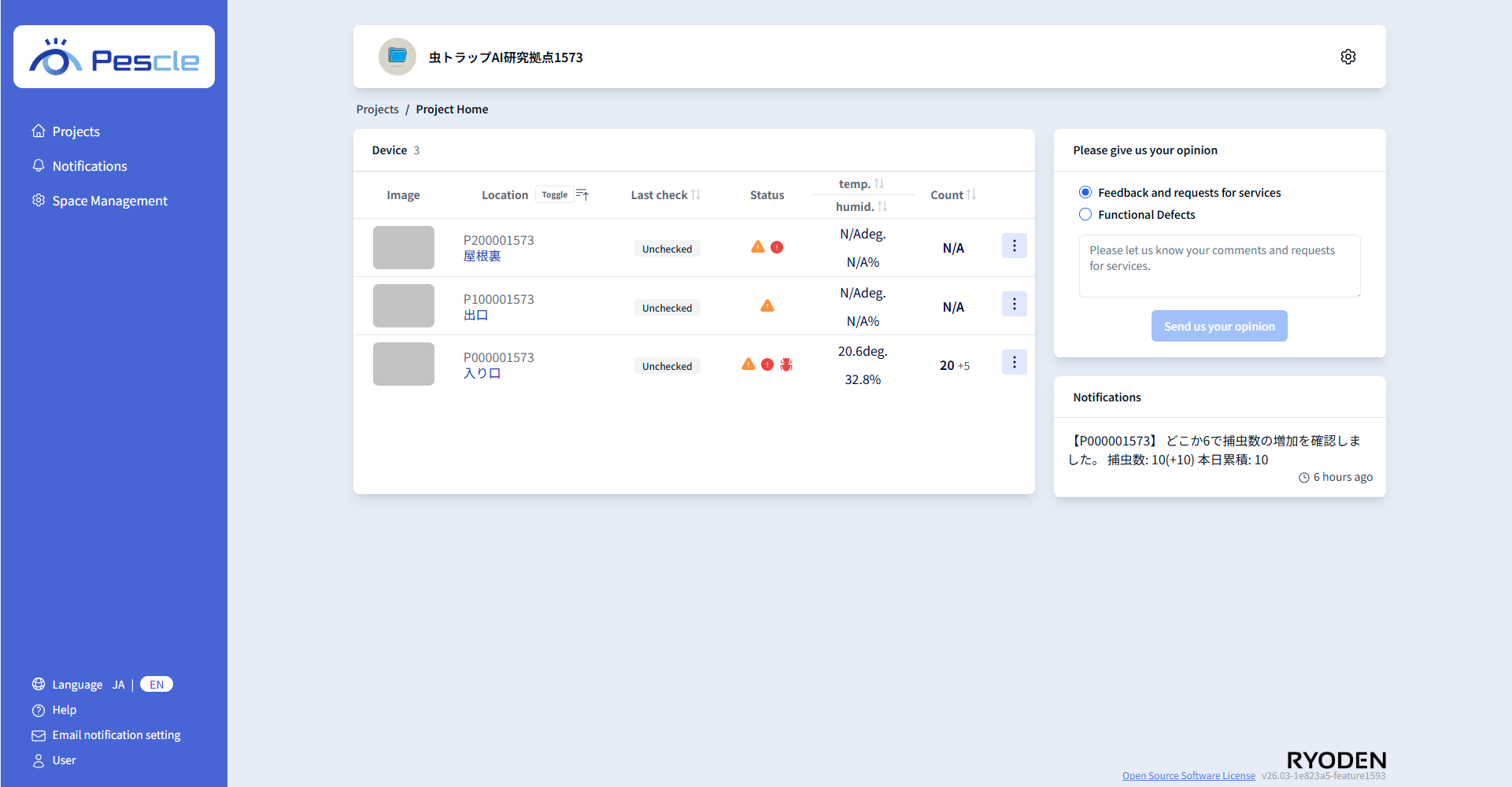
You can check the status of each insect trap camera using icons. For details, see How to Read Status Icons.
How to Read Status Icons
The status of each insect trap camera is shown as an icon. Hovering over an icon displays the details of the status.
 (Icon name: Warning)
Meaning: Displayed when temperature or humidity is N/A.
Displayed on hover:
There may be a problem with the device installation.
 (Icon name: Error)
Meaning: Displayed when an error has occurred (e.g., UV lamp off error, cap error, lens dirt error, LED lamp error, communication error).
Displayed on hover:
UV lamp off error
Cap error
Lens dirt error
LED lamp error
Communication error
 (Icon name: Bug)
Meaning: Displayed when a difference has been detected within the last 24 hours.
Displayed on hover:
Insects have been detected.
How to Sort Insect Trap Cameras
You can change the display order of insect trap cameras shown on the project home.
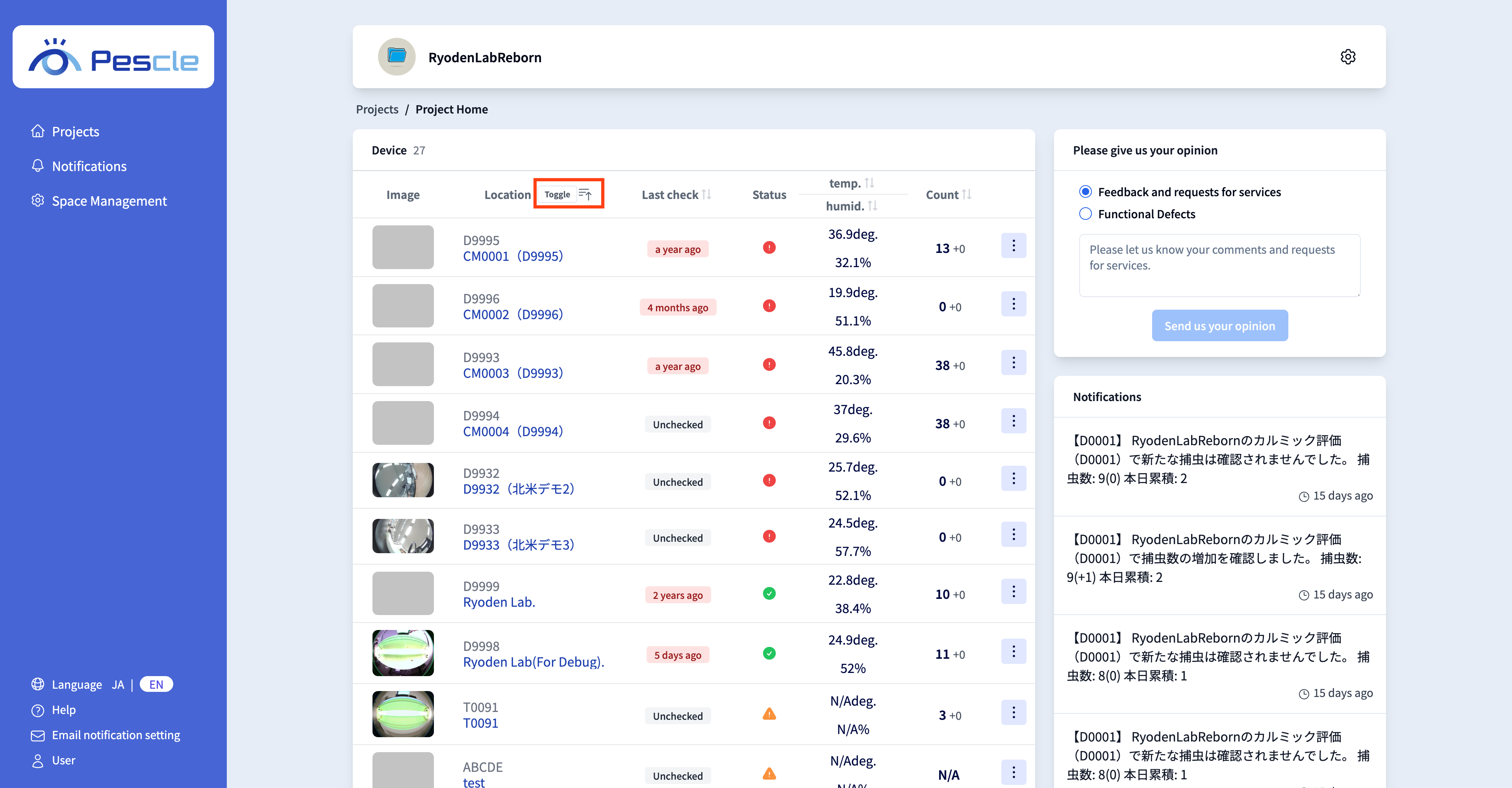
Press the toggle button to switch the sort target between “Installation Location” and “Unit Number”.
You can switch between ascending and descending order using the icon to the right of the toggle button.
The default is ascending order by “Installation Location”.